> ## Documentation Index
> Fetch the complete documentation index at: https://docs.unibee.dev/llms.txt
> Use this file to discover all available pages before exploring further.
# Viewing User Usage Billing
\#Viewing User Usage Billing in UniBee
## 1. Overview
After you’ve configured **Billing Metrics** and linked them to your **Product Plans**, UniBee automatically tracks and displays each user’s usage-based charges.\
There are two main areas where admins can monitor this data:
1. **User Detail → Metering Usage tab** – View live usage data per user.
2. **Invoices → Invoice Detail view** – View billing details and total charges, including usage-based items.
This guide explains how to check and verify these records step by step.
***
## 2. Viewing Usage Data per User
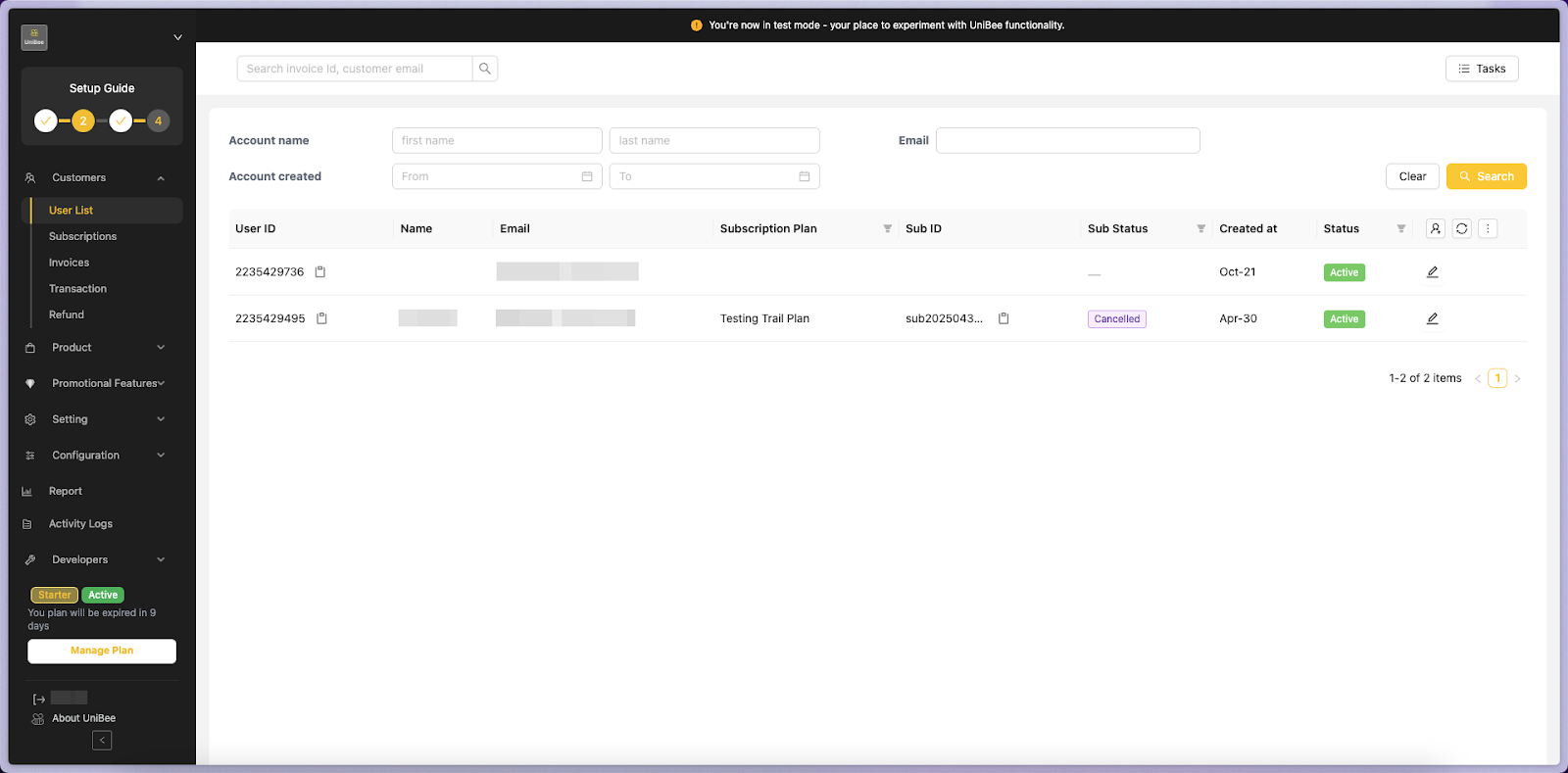
### Step 1. Navigate to User List
From the left navigation panel, go to:
**Customers → User List**
This page lists all your customer accounts, including their **User ID**, **Email**, **Subscription Plan**, and **Status**.
 ***
### Step 2. Open the User Detail Page
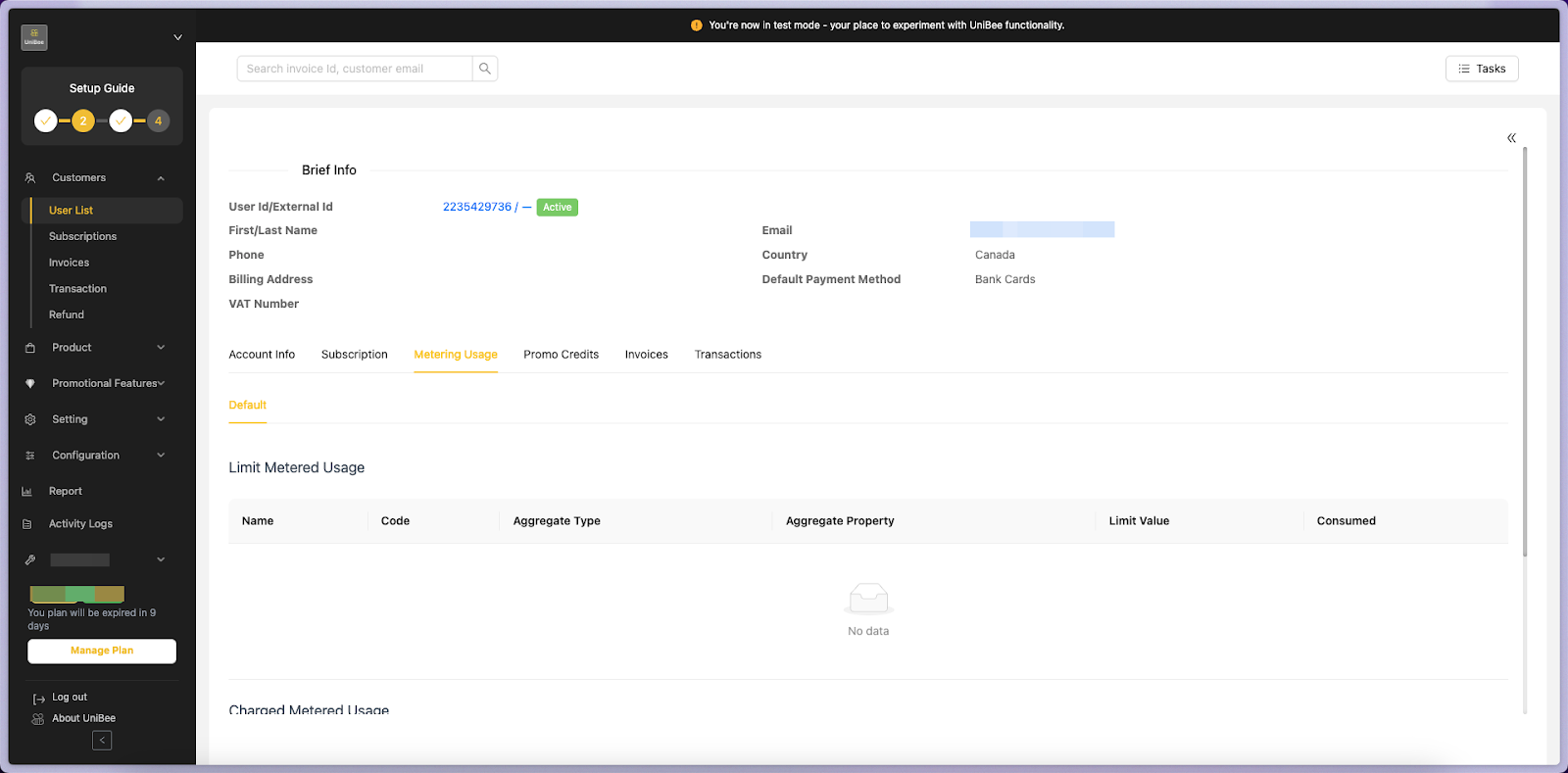
Click the **edit (pencil)** icon next to a user’s row to open the detailed view.\
This page displays key user information such as:
* **User ID / External ID**
* **Email and Country**
* **Default Payment Method**
* **Account / Subscription / Metering Usage Tabs**
***
### Step 2. Open the User Detail Page
Click the **edit (pencil)** icon next to a user’s row to open the detailed view.\
This page displays key user information such as:
* **User ID / External ID**
* **Email and Country**
* **Default Payment Method**
* **Account / Subscription / Metering Usage Tabs**
 ***
### Step 3. Check Metering Usage Tab
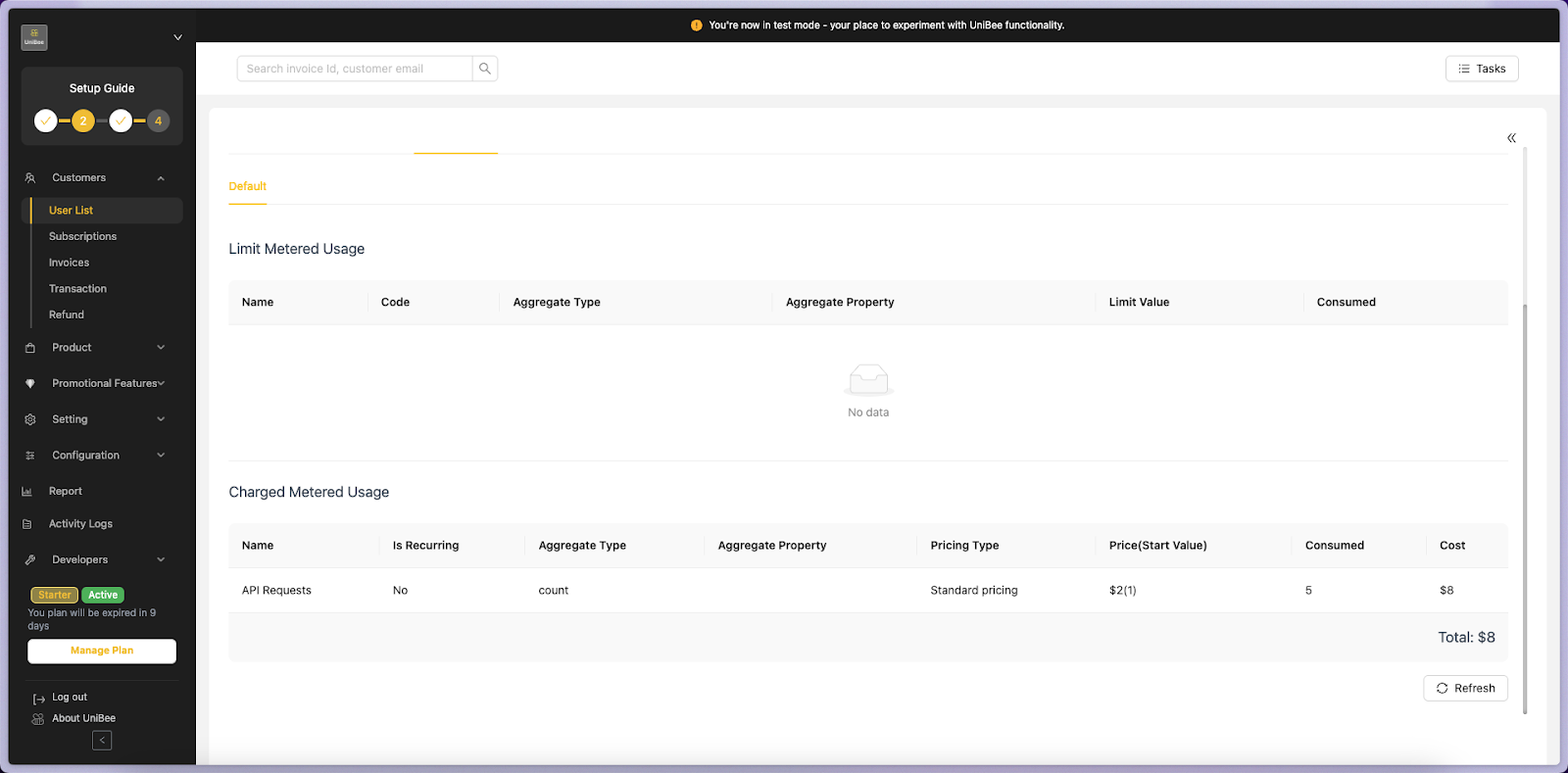
Select the **Metering Usage** tab to view usage metrics and consumption data.\
This section is divided into two parts:
| Section | Description |
| ------------------------- | ---------------------------------------------------------------------- |
| **Limit Metered Usage** | Displays metrics that have consumption limits (e.g., capped features). |
| **Charged Metered Usage** | Displays metrics billed on actual usage (e.g., API Requests, Tokens). |
If there’s no recorded usage yet, the table will display “No data.”
***
### Step 3. Check Metering Usage Tab
Select the **Metering Usage** tab to view usage metrics and consumption data.\
This section is divided into two parts:
| Section | Description |
| ------------------------- | ---------------------------------------------------------------------- |
| **Limit Metered Usage** | Displays metrics that have consumption limits (e.g., capped features). |
| **Charged Metered Usage** | Displays metrics billed on actual usage (e.g., API Requests, Tokens). |
If there’s no recorded usage yet, the table will display “No data.”
 ***
### Step 4. Example: Viewing Billed Usage
When usage is recorded for a user, the **Charged Metered Usage** table displays details such as:
| Field | Description | Example |
| ---------------------- | --------------------------------------------- | ------------ |
| **Name** | Billing Metric name | API Requests |
| **Is Recurring** | Whether the charge repeats each billing cycle | No |
| **Aggregate Type** | Aggregation type used (e.g., count, sum) | count |
| **Pricing Type** | Pricing model (e.g., Standard Pricing) | Standard |
| **Price(Start Value)** | Price and starting threshold | \$2 (1) |
| **Consumed** | Units of usage consumed | 5 |
| **Cost** | Total calculated charge | \$8 |
***
## 3. Viewing Usage Billing in Invoices
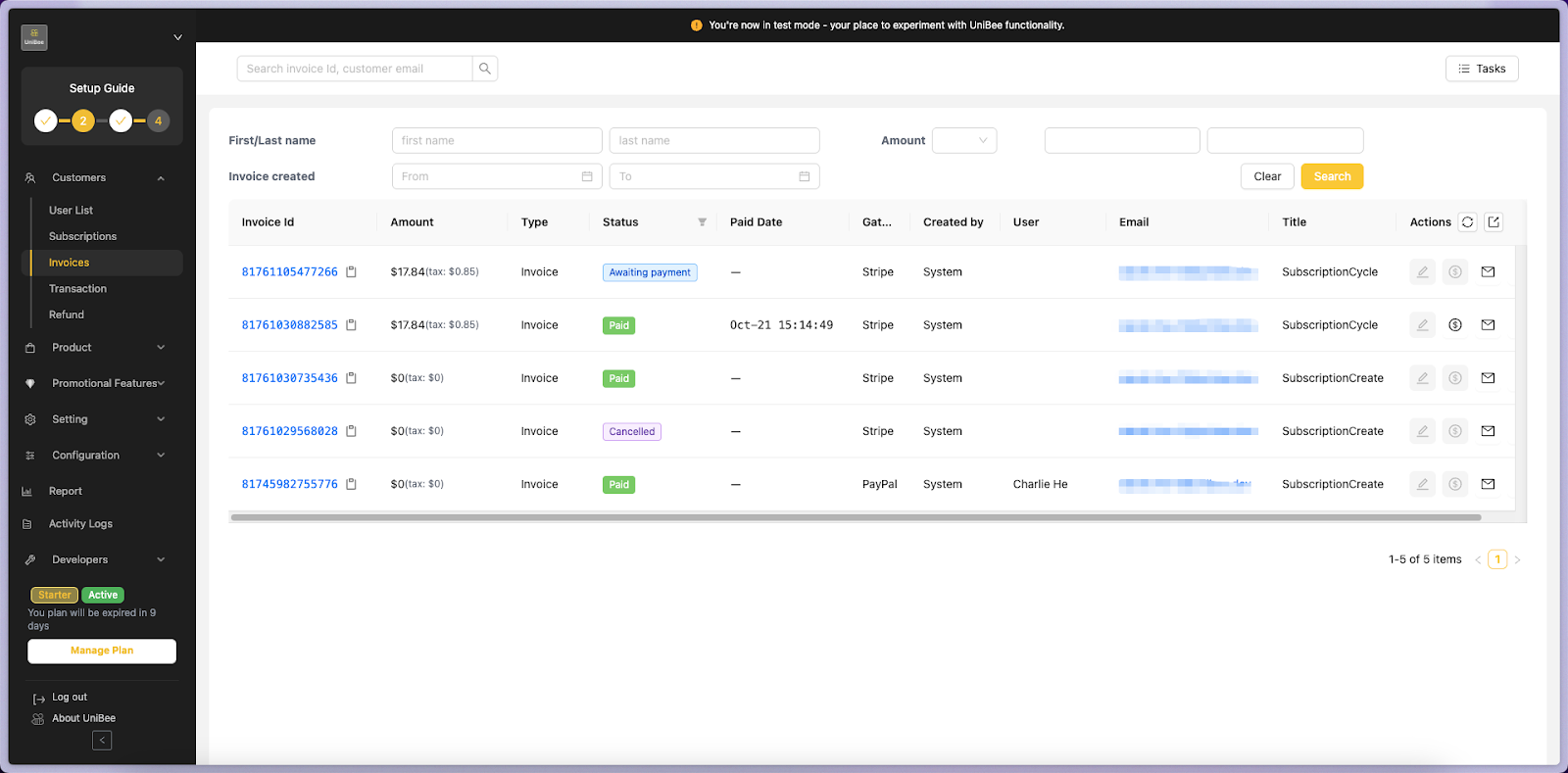
### Step 1. Navigate to Invoice List
Go to the left menu:\
**Customers → Invoices**
The **Invoices** page lists all generated invoices, including their status, payment gateway, and total amount.
***
### Step 4. Example: Viewing Billed Usage
When usage is recorded for a user, the **Charged Metered Usage** table displays details such as:
| Field | Description | Example |
| ---------------------- | --------------------------------------------- | ------------ |
| **Name** | Billing Metric name | API Requests |
| **Is Recurring** | Whether the charge repeats each billing cycle | No |
| **Aggregate Type** | Aggregation type used (e.g., count, sum) | count |
| **Pricing Type** | Pricing model (e.g., Standard Pricing) | Standard |
| **Price(Start Value)** | Price and starting threshold | \$2 (1) |
| **Consumed** | Units of usage consumed | 5 |
| **Cost** | Total calculated charge | \$8 |
***
## 3. Viewing Usage Billing in Invoices
### Step 1. Navigate to Invoice List
Go to the left menu:\
**Customers → Invoices**
The **Invoices** page lists all generated invoices, including their status, payment gateway, and total amount.
 ***
### Step 2. Open Invoice Detail
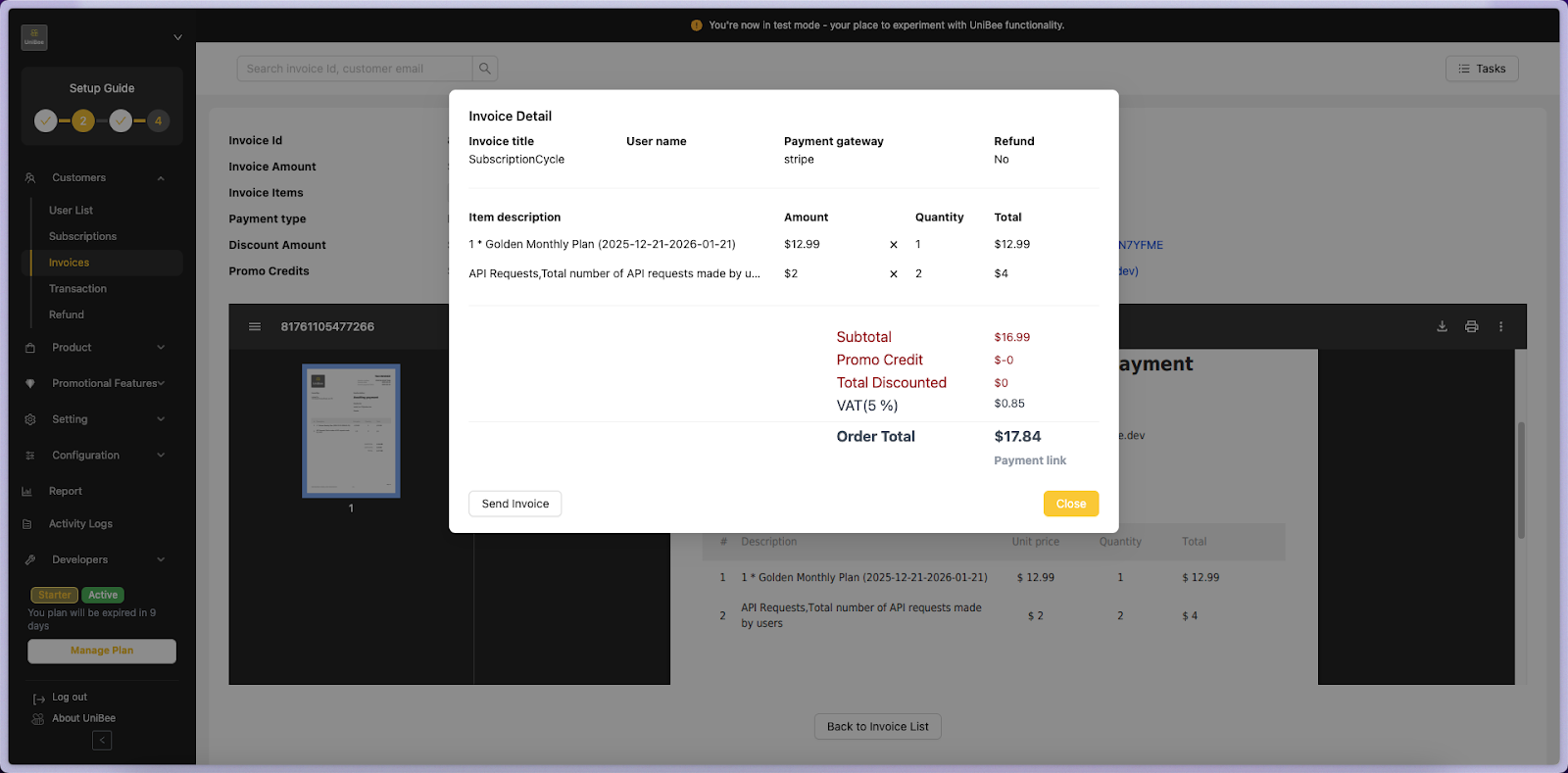
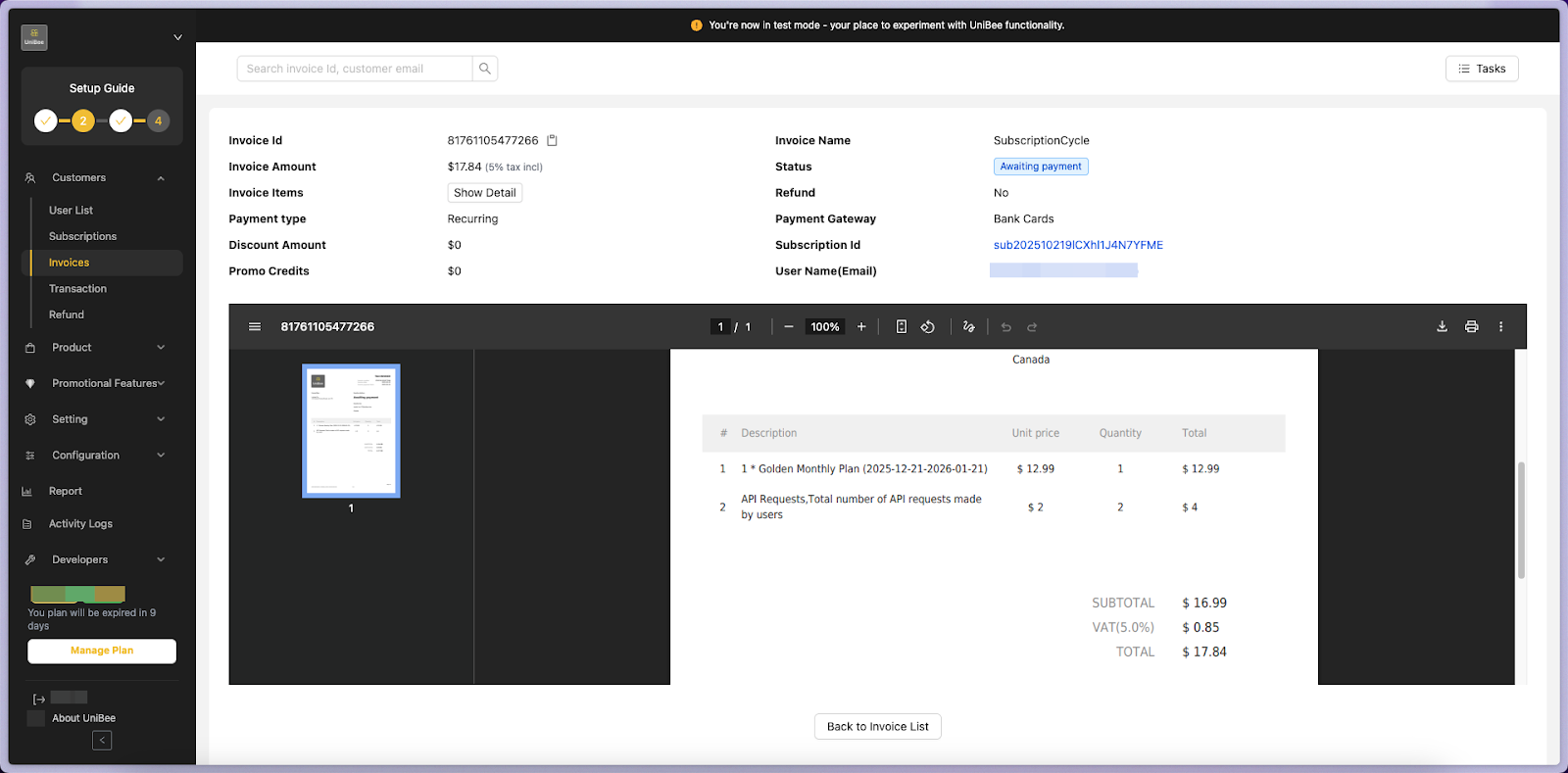
Click on an **Invoice ID** to open its **Invoice Detail** popup.\
This view shows the breakdown of all billed items — both fixed recurring charges and usage-based charges.
You’ll see the following sections:
| Field | Description |
| ----------------------------- | ------------------------------------------------ |
| **Invoice Title** | The billing event type (e.g., SubscriptionCycle) |
| **Item Description** | Line items for base plan + usage |
| **Amount / Quantity / Total** | Unit price, count, and total per item |
| **VAT / Tax** | Automatically applied tax if configured |
| **Order Total** | Final amount after credits and discounts |
***
### Step 2. Open Invoice Detail
Click on an **Invoice ID** to open its **Invoice Detail** popup.\
This view shows the breakdown of all billed items — both fixed recurring charges and usage-based charges.
You’ll see the following sections:
| Field | Description |
| ----------------------------- | ------------------------------------------------ |
| **Invoice Title** | The billing event type (e.g., SubscriptionCycle) |
| **Item Description** | Line items for base plan + usage |
| **Amount / Quantity / Total** | Unit price, count, and total per item |
| **VAT / Tax** | Automatically applied tax if configured |
| **Order Total** | Final amount after credits and discounts |
 ***
### Example Breakdown
In the Invoice Detail view:
| Item | Quantity | Unit Price | Total |
| -------------------- | -------- | ---------- | ----------- |
| Golden Monthly Plan | 1 | \$12.99 | \$12.99 |
| API Requests (usage) | 2 | \$2.00 | \$4.00 |
| **Subtotal** | | | **\$16.99** |
| VAT (5%) | | | **\$0.85** |
| **Order Total** | | | **\$17.84** |
This confirms the **usage-based billing charges** are successfully captured and reflected in the user’s invoice.
***
## 4. Summary
| Action | Where to View | Purpose |
| ------------------------- | ---------------------------------- | ---------------------------------------------------------- |
| **Check live usage data** | *User Detail → Metering Usage tab* | See user’s real-time consumption by metric |
| **Verify billed usage** | *Invoice → Invoice Detail* | Confirm how usage translates into actual charges |
| **Cross-check totals** | *Invoice Total Section* | Ensure accuracy between recorded metrics and invoice total |
***
## 🏁 Conclusion
By reviewing data under **Metering Usage** and **Invoice Detail**,\
you can easily trace how each user’s consumption contributes to their billing cycle.
This provides full transparency across:
* **Usage tracking** (API Requests, Tokens, etc.)
* **Automated billing** (based on recorded usage)
* **Invoice validation** (displaying detailed usage costs)
***
***
### Example Breakdown
In the Invoice Detail view:
| Item | Quantity | Unit Price | Total |
| -------------------- | -------- | ---------- | ----------- |
| Golden Monthly Plan | 1 | \$12.99 | \$12.99 |
| API Requests (usage) | 2 | \$2.00 | \$4.00 |
| **Subtotal** | | | **\$16.99** |
| VAT (5%) | | | **\$0.85** |
| **Order Total** | | | **\$17.84** |
This confirms the **usage-based billing charges** are successfully captured and reflected in the user’s invoice.
***
## 4. Summary
| Action | Where to View | Purpose |
| ------------------------- | ---------------------------------- | ---------------------------------------------------------- |
| **Check live usage data** | *User Detail → Metering Usage tab* | See user’s real-time consumption by metric |
| **Verify billed usage** | *Invoice → Invoice Detail* | Confirm how usage translates into actual charges |
| **Cross-check totals** | *Invoice Total Section* | Ensure accuracy between recorded metrics and invoice total |
***
## 🏁 Conclusion
By reviewing data under **Metering Usage** and **Invoice Detail**,\
you can easily trace how each user’s consumption contributes to their billing cycle.
This provides full transparency across:
* **Usage tracking** (API Requests, Tokens, etc.)
* **Automated billing** (based on recorded usage)
* **Invoice validation** (displaying detailed usage costs)
***