> ## Documentation Index
> Fetch the complete documentation index at: https://docs.unibee.dev/llms.txt
> Use this file to discover all available pages before exploring further.
# Zapier Integration Guide
> Connect UniBee to over 6,000+ other web services. Automated connections called Zaps can automate your day-to-day tasks and build workflows between apps.
# UniBee Zapier Integration Guide
Zapier lets you connect UniBee to over 6,000+ other web services. Automated connections called **Zaps**, set up in minutes with no coding, can automate your day-to-day tasks and build workflows between apps that otherwise wouldn't be possible.
This guide explains how to connect UniBee to Zapier and use UniBee events to trigger automated workflows.
***
## 1. Common Use Cases
In Zapier, UniBee primarily acts as a **Trigger**. This means when something happens in UniBee (like a new subscription or a payment), it automatically kicks off actions in other apps.
### A. Sync Sales & CRM Data
* **Trigger:** When a **New Subscription** is created in UniBee.
* **Action:** Create or update a contact in **HubSpot**, **Salesforce**, or **Pipedrive**.
* **Goal:** Keep your sales team updated without manual data entry.
### B. Real-time Team Alerts
* **Trigger:** When a **New Payment Event** (specifically a failure) or **Subscription Cancelled** event occurs.
* **Action:** Send a notification to a specific **Slack** or **Microsoft Teams** channel (e.g., `#churn-risk`).
* **Goal:** Allow your Customer Success team to react immediately to billing issues.
### C. Accounting & Archiving
* **Trigger:** When a **New Invoice Event** (Paid) occurs.
* **Action:** Add a new row to **Google Sheets** or create a sales receipt in **QuickBooks/Xero**.
* **Goal:** Simplify month-end reconciliation and keep backup records.
### D. Automated Onboarding
* **Trigger:** When a **New User** is created in UniBee.
* **Action:** Add the user to an email marketing list in **Mailchimp** or **ActiveCampaign**.
* **Goal:** Automatically send welcome emails or onboarding sequences.
***
## 2. Prerequisites
Before you begin, ensure you have:
1. A **UniBee** account with Administrator access.
2. A **Zapier** account.
***
## 3. How to Connect UniBee to Zapier
To create Zaps, you first need to authenticate your UniBee account within Zapier.
1. Log in to your [Zapier account](https://zapier.com/app/login).
2. Navigate to **"Apps"** from the left-hand menu.
3. Click **"+ Add connection"** in the top right corner.
4. Search for `UniBee` and select it.\\
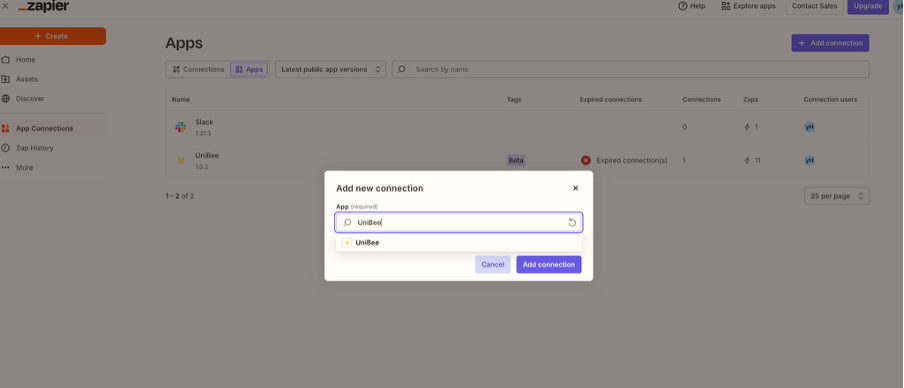 5. A pop-up window will appear asking for your **API Key** and **Region**.\\
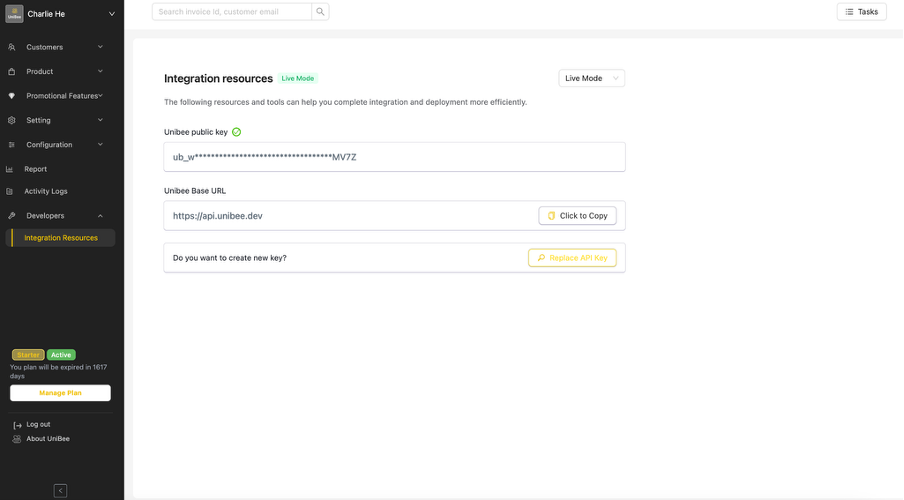
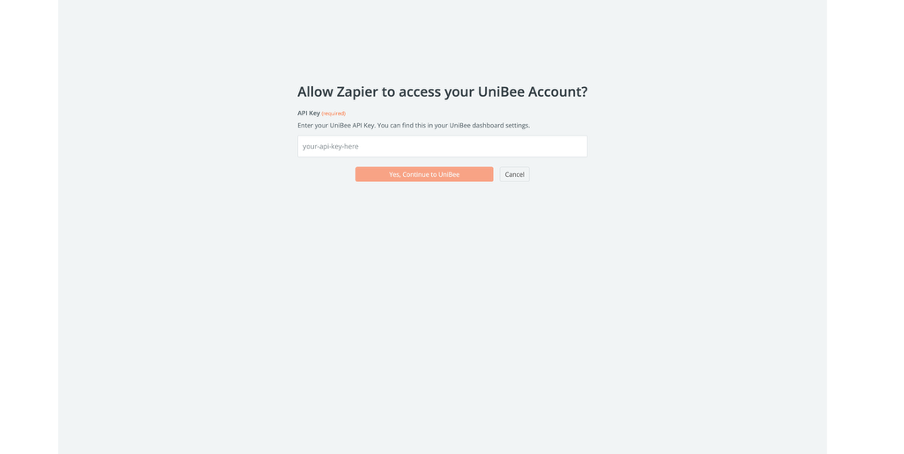 6. **To get your API Key:**
* Open your UniBee Dashboard.
* Go to **Settings** > **Developer** > **API Keys**.
* Click **Create New Key**.
* Copy the key and paste it into the Zapier window.
6. **To get your API Key:**
* Open your UniBee Dashboard.
* Go to **Settings** > **Developer** > **API Keys**.
* Click **Create New Key**.
* Copy the key and paste it into the Zapier window.
 7. Click **"Yes, Continue"**. Once authenticated, UniBee will appear in your "My Apps" list.
***
## 4. How to Create a Zap (Handling UniBee Events)
In this example, we will create a Zap that sends a **Slack notification** whenever a **New Subscription is Activated**.
### Step 1: Set up the Trigger
1. Click **"+ Create Zap"** on your Zapier dashboard.
2. Click the **Trigger** block.
3. Search for and select **UniBee**.
4. **Choose Event:** Select `New Subscription Activated` from the list.
5. Click **Continue**.\\
7. Click **"Yes, Continue"**. Once authenticated, UniBee will appear in your "My Apps" list.
***
## 4. How to Create a Zap (Handling UniBee Events)
In this example, we will create a Zap that sends a **Slack notification** whenever a **New Subscription is Activated**.
### Step 1: Set up the Trigger
1. Click **"+ Create Zap"** on your Zapier dashboard.
2. Click the **Trigger** block.
3. Search for and select **UniBee**.
4. **Choose Event:** Select `New Subscription Activated` from the list.
5. Click **Continue**.\\
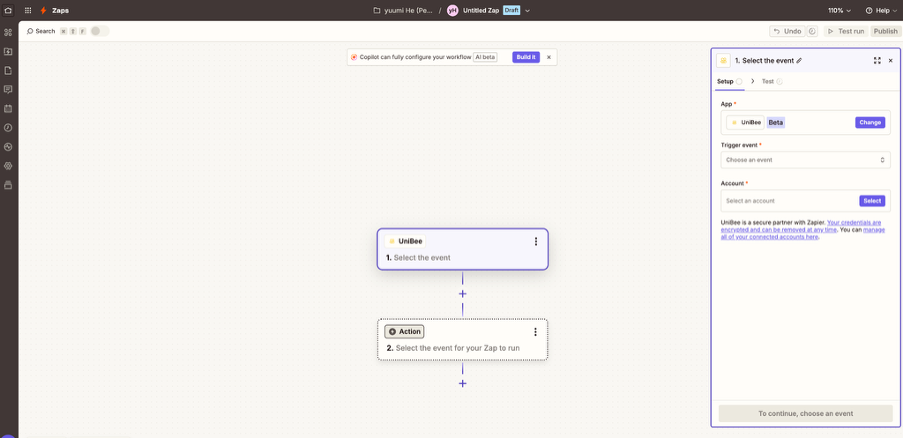 6. **Choose Account:** Select the UniBee account you connected in the previous section.
7. **Test Trigger:**
* Click **Test trigger**.
* Zapier will pull in a recent subscription from your UniBee account as a sample.
* *Note: If your UniBee account is empty, please manually create a test subscription in UniBee first.*
* Review the data (e.g., `email`, `plan_name`, `amount`) and click **Continue with selected record**.
### Step 2: Set up the Action
1. Click the **Action** block.
2. Search for **Slack** (or your preferred app).
3. **Choose Event:** Select \`Send Channel Message\`.
4. Connect your Slack account and select the channel (e.g., `#general`).
5. **Configure Message:**
* In the "Message Text" field, you can type static text and mix it with dynamic data from UniBee.
* Click inside the box and select fields from the "Insert Data" list.
* *Example:* "New Customer Alert! **\[User Email]** just subscribed to **\[Plan Name]**."
6. Click **Continue** and **Test step**.
7. If the test is successful, click **Publish** to turn on your Zap.
***
## 5. Supported Triggers
UniBee supports the following triggers on Zapier. Choose the one that best fits your workflow:
* **New User Event**: Triggers when a user event occurs (created, updated, metric update, or subscription update).
* **New User Plan Change**: Triggers when a user subscription or subscription change occurs.
* **New Subscription Event**: Triggers when a subscription event occurs (created, activated, updated, cancelled, expired, etc.).
* **New Subscription Activated**: Triggers specifically when a subscription becomes active.
* **New Subscription Expired**: Triggers when a subscription expires.
* **New Subscription Pending Update Event**: Triggers when a subscription pending update event occurs (create, success, or cancelled).
* **New Subscription Onetime Addon Event**: Triggers when a subscription onetime addon event occurs (created, success, cancelled, or expired).
* **New Payment Event**: Triggers when a payment event occurs (created, authorized, success, cancelled, or failure).
* **New Invoice Event**: Triggers when an invoice event occurs (created, paid, process, cancelled, failed, or reversed).
* **New Refund Event**: Triggers when a refund event occurs (created, success, failure, cancelled, or reversed).
***
## 6. FAQ
**Q: I'm getting an "Authentication Failed" error.**\
A: Please check that your API Key was copied correctly without any leading or trailing spaces. Ensure the key is still active in your UniBee Developer settings.
**Q: What is the difference between "New Subscription Event" and "New Subscription Activated"?**\
A: `New Subscription Activated` triggers **only** when a subscription successfully starts. This is best for "Welcome" emails. `New Subscription Event` is a broader trigger that fires for *any* change (creation, cancellation, expiration), which is better for comprehensive data logging.
**Q: Can I filter events? (e.g., Only trigger for payments over \$100)**\
A: Yes. You can add a **Filter** step in Zapier between the Trigger and the Action. Set the logic to only continue if `Amount` > `100`.
6. **Choose Account:** Select the UniBee account you connected in the previous section.
7. **Test Trigger:**
* Click **Test trigger**.
* Zapier will pull in a recent subscription from your UniBee account as a sample.
* *Note: If your UniBee account is empty, please manually create a test subscription in UniBee first.*
* Review the data (e.g., `email`, `plan_name`, `amount`) and click **Continue with selected record**.
### Step 2: Set up the Action
1. Click the **Action** block.
2. Search for **Slack** (or your preferred app).
3. **Choose Event:** Select \`Send Channel Message\`.
4. Connect your Slack account and select the channel (e.g., `#general`).
5. **Configure Message:**
* In the "Message Text" field, you can type static text and mix it with dynamic data from UniBee.
* Click inside the box and select fields from the "Insert Data" list.
* *Example:* "New Customer Alert! **\[User Email]** just subscribed to **\[Plan Name]**."
6. Click **Continue** and **Test step**.
7. If the test is successful, click **Publish** to turn on your Zap.
***
## 5. Supported Triggers
UniBee supports the following triggers on Zapier. Choose the one that best fits your workflow:
* **New User Event**: Triggers when a user event occurs (created, updated, metric update, or subscription update).
* **New User Plan Change**: Triggers when a user subscription or subscription change occurs.
* **New Subscription Event**: Triggers when a subscription event occurs (created, activated, updated, cancelled, expired, etc.).
* **New Subscription Activated**: Triggers specifically when a subscription becomes active.
* **New Subscription Expired**: Triggers when a subscription expires.
* **New Subscription Pending Update Event**: Triggers when a subscription pending update event occurs (create, success, or cancelled).
* **New Subscription Onetime Addon Event**: Triggers when a subscription onetime addon event occurs (created, success, cancelled, or expired).
* **New Payment Event**: Triggers when a payment event occurs (created, authorized, success, cancelled, or failure).
* **New Invoice Event**: Triggers when an invoice event occurs (created, paid, process, cancelled, failed, or reversed).
* **New Refund Event**: Triggers when a refund event occurs (created, success, failure, cancelled, or reversed).
***
## 6. FAQ
**Q: I'm getting an "Authentication Failed" error.**\
A: Please check that your API Key was copied correctly without any leading or trailing spaces. Ensure the key is still active in your UniBee Developer settings.
**Q: What is the difference between "New Subscription Event" and "New Subscription Activated"?**\
A: `New Subscription Activated` triggers **only** when a subscription successfully starts. This is best for "Welcome" emails. `New Subscription Event` is a broader trigger that fires for *any* change (creation, cancellation, expiration), which is better for comprehensive data logging.
**Q: Can I filter events? (e.g., Only trigger for payments over \$100)**\
A: Yes. You can add a **Filter** step in Zapier between the Trigger and the Action. Set the logic to only continue if `Amount` > `100`.