> ## Documentation Index
> Fetch the complete documentation index at: https://docs.unibee.dev/llms.txt
> Use this file to discover all available pages before exploring further.
# Batch Discount Codes
> Create a template with unified discount rules and generate thousands of unique, single-use codes for large-scale, trackable campaigns.
# Batch Discount Codes
**Batch discount codes** let you define a single **template** (the "master rule") and generate up to **10,000 unique, single-use child codes** from it. Every child code inherits the template's discount rules, but each can be redeemed only once — making batches ideal for large campaigns where you need to prevent sharing and track conversions code-by-code.
> 💡 Looking for one reusable code instead of many unique ones? See [Standard discount codes](./create-edit-copy-and-archive). Need codes created on the fly via API? See [External discount codes](./external-discount-codes).
## Key features
* **Template-based:** One template holds all the discount rules; every generated code inherits them.
* **Bulk generation:** Generate up to 10,000 unique codes per template.
* **Guaranteed uniqueness:** Each code is unique at your merchant level; duplicates are rejected automatically.
* **Single-use:** Each child code can be redeemed only once, preventing sharing or resale.
* **Import support:** Bring in externally sourced codes (for example, vouchers sold on a third-party platform).
* **Per-code tracking:** See the status, redeeming user, and time for every individual code.
* **Expandable:** Increase the template's target quantity after activation to mint more codes.
## Common use cases
* **Targeted marketing:** Email a unique code to each user in a list so codes can't be shared.
* **Partner / influencer distribution:** Give each partner their own batch (for example, prefix `KOL`) and compare redemption performance per code.
* **Fraud prevention:** Because each code is single-use, a code leaked to a coupon site won't work for a second person.
* **External voucher activation:** Import codes sold elsewhere (for example, on a deals site) so customers can redeem them at your checkout.
***
## 1. Create a batch template
1. Navigate to the **Discount Code** section in the UniBee Dashboard.
2. Click **New Batch Discount** (or **Create Batch Template**).
3. Configure the template:
| Field | Description | Example |
| :------------------- | :----------------------------------------------------------------------------------------------------------------------------------------------------------- | :------------------------- |
| **Batch Name** | Internal name for tracking the campaign. Not shown to customers. | `2025 Spring VIP Campaign` |
| **Code Prefix** | Prefix shared by all generated codes. **1–20 characters**, unique at your merchant level. Cannot be changed after creation. | `VIP2025` |
| **Target Quantity** | Number of unique codes to generate. **1–10,000.** | `1000` |
| **Discount Type** | Percentage or Fixed Amount. For fixed amount, the currency must match the main plan's currency. | `20% off` / `$10.00 off` |
| **Billing Type** | One-time (first invoice only) or Recurring (applies across renewals). | `One-time` |
| **Duration** | One-time, Forever, or Repeating (with a cycle limit). See [Understanding duration](./discount-code-introduction#3-understanding-duration-for-subscriptions). | `One-time` or `3 cycles` |
| **Applies to** | All plans, selected plans, or by billing period. | `Premium Plan - Yearly` |
| **Valid Date Range** | Start and expiration dates (UTC+0). | `Jan 1` – `Mar 31` |
4. (Optional) Configure **Advanced settings** — see the note below.
5. Click **Save**. The template status is set to **Editing**.
 > ⚠️ **Advanced settings require a master switch.** All advanced rules (applicable scope, subscription limits, and "Same user cannot use the same discount code again") only take effect when **Enable advanced configuration** is turned on for the template. If it's off, those values may appear in the form and Summary but are **not enforced** at checkout. See [Advanced configuration](./create-edit-copy-and-archive#advanced-configuration) for full details — the rules are identical to standard codes.
> ⚠️ **"Apply by billing period" matches on interval, not plan type.** A one-time add-on (such as a minutes or top-up plan) that has, say, `1 month` configured as its billing period **will** be matched by a `1 month` billing-period rule. To exclude such plans, use selected/except plans or the exclude list.
***
## 2. Activate the template
1. While in **Editing** status, you can modify any setting.
2. Click **Activate**. The status changes to **Active**.
> **Only activated templates can generate codes.**
***
## 3. Generate child codes
Once the template is active, generate codes using either method.
### Method A: Automatic generation
1. Click **Generate Codes** on the template detail page.
> ⚠️ **Advanced settings require a master switch.** All advanced rules (applicable scope, subscription limits, and "Same user cannot use the same discount code again") only take effect when **Enable advanced configuration** is turned on for the template. If it's off, those values may appear in the form and Summary but are **not enforced** at checkout. See [Advanced configuration](./create-edit-copy-and-archive#advanced-configuration) for full details — the rules are identical to standard codes.
> ⚠️ **"Apply by billing period" matches on interval, not plan type.** A one-time add-on (such as a minutes or top-up plan) that has, say, `1 month` configured as its billing period **will** be matched by a `1 month` billing-period rule. To exclude such plans, use selected/except plans or the exclude list.
***
## 2. Activate the template
1. While in **Editing** status, you can modify any setting.
2. Click **Activate**. The status changes to **Active**.
> **Only activated templates can generate codes.**
***
## 3. Generate child codes
Once the template is active, generate codes using either method.
### Method A: Automatic generation
1. Click **Generate Codes** on the template detail page.
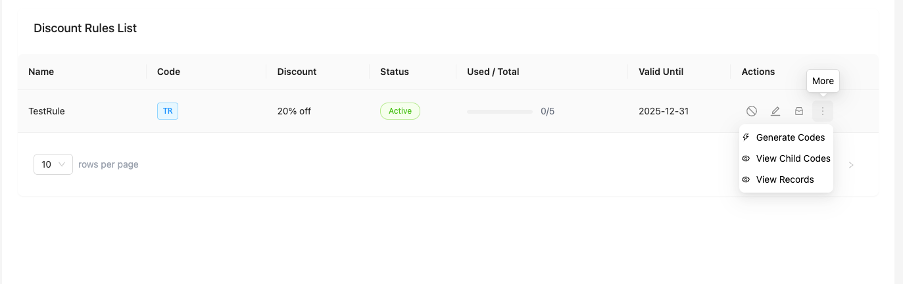 2. The system mints unique codes up to the target quantity (or a quantity you specify, not exceeding the remaining amount).
 **Code format:** `{CodePrefix}{RandomPart}` — for example `VIP2025A3B7C9D2`.
| Option | Behavior |
| :--------------------------------------------- | :--------------------------------------------------------------------------------------------------------------------------------------------------------------------------------------------------------------------------------------------- |
| **Random part length** | Defaults to **8** characters. The random alphabet excludes ambiguous characters (no `0/O`, `1/I/l`) to make codes easy to read and type. |
| **Total code length** (`codeLength`, optional) | The full code length (prefix + random part). Must be greater than the prefix length and **at most 190**. The random part must be long enough to support the target quantity; otherwise generation is rejected with a suggested minimum length. |
| **Random style** (`randomStyle`, optional) | `auto` (default), `numeric`, `lower`, or `upper`. `auto` infers the style from the prefix: all digits → numeric, all lowercase → lower, otherwise upper. |
| **Large batches** | Generating more than **1,000** codes at once runs **asynchronously**. You'll be notified when it completes. |
Generation is resumable: if it's interrupted, running it again only creates the missing codes.
### Method B: Import custom codes
Use this to bring in codes from another system or partner.
1. Click **Import Codes** on the template detail page.
2. Prepare an Excel/CSV file with these columns:
* **Code** — the discount code (any format, must be unique at your merchant level).
* **TemplateCode** — the code prefix of the target template.
3. Upload the file and wait for processing.
4. Review the import result file for any per-row errors.
**Code format:** `{CodePrefix}{RandomPart}` — for example `VIP2025A3B7C9D2`.
| Option | Behavior |
| :--------------------------------------------- | :--------------------------------------------------------------------------------------------------------------------------------------------------------------------------------------------------------------------------------------------- |
| **Random part length** | Defaults to **8** characters. The random alphabet excludes ambiguous characters (no `0/O`, `1/I/l`) to make codes easy to read and type. |
| **Total code length** (`codeLength`, optional) | The full code length (prefix + random part). Must be greater than the prefix length and **at most 190**. The random part must be long enough to support the target quantity; otherwise generation is rejected with a suggested minimum length. |
| **Random style** (`randomStyle`, optional) | `auto` (default), `numeric`, `lower`, or `upper`. `auto` infers the style from the prefix: all digits → numeric, all lowercase → lower, otherwise upper. |
| **Large batches** | Generating more than **1,000** codes at once runs **asynchronously**. You'll be notified when it completes. |
Generation is resumable: if it's interrupted, running it again only creates the missing codes.
### Method B: Import custom codes
Use this to bring in codes from another system or partner.
1. Click **Import Codes** on the template detail page.
2. Prepare an Excel/CSV file with these columns:
* **Code** — the discount code (any format, must be unique at your merchant level).
* **TemplateCode** — the code prefix of the target template.
3. Upload the file and wait for processing.
4. Review the import result file for any per-row errors.
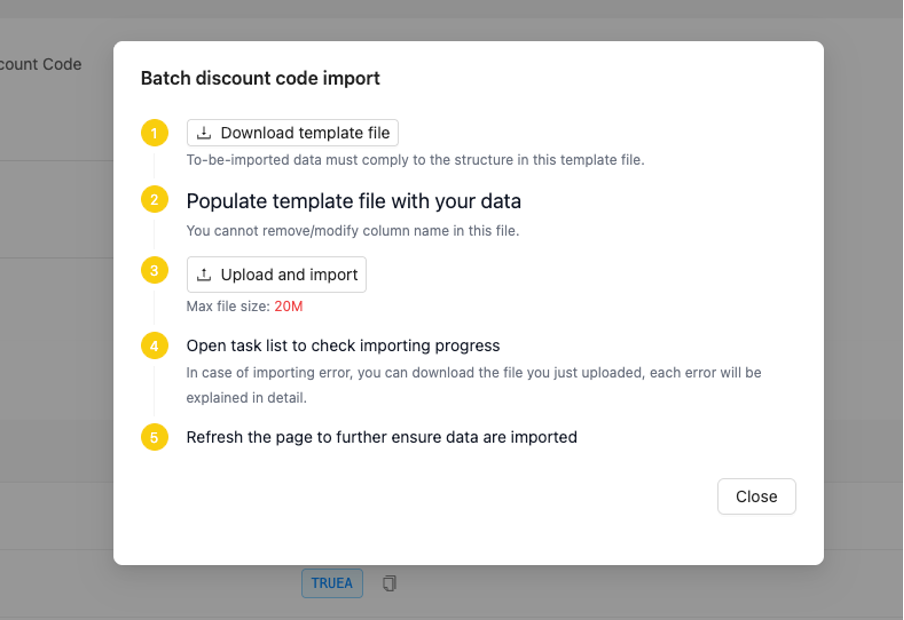 **Import rules:** codes can be in any format, must be unique at your merchant level, and the template must be **Active**.
***
## 4. Manage templates
### View templates
In the Discount Code section you can:
* **Filter by status:** Editing, Active, Inactive, Archived.
* **Search** by batch name or code prefix.
* **See statistics:** target quantity, generated count, used count, and available count.
**Import rules:** codes can be in any format, must be unique at your merchant level, and the template must be **Active**.
***
## 4. Manage templates
### View templates
In the Discount Code section you can:
* **Filter by status:** Editing, Active, Inactive, Archived.
* **Search** by batch name or code prefix.
* **See statistics:** target quantity, generated count, used count, and available count.
 ### Dashboard metrics
The batch overview surfaces real-time campaign performance:
* **Active Rules** — number of live templates currently running.
* **Total Codes** — total unique child codes generated across all templates.
* **Redemptions** — total successful checkouts using these codes.
* **Redemption Rate** — Redemptions ÷ Total Codes.
### Edit templates
| Status | What you can change |
| :---------- | :--------------------------------------------------------------------------------------------------------------------------------------------------------------------------------------- |
| **Editing** | Any setting, including increasing or decreasing the quantity. |
| **Active** | Discount rules and most settings (changes apply to all codes). Quantity can only be **increased**, never below the number of codes already generated. **Code Prefix cannot be changed.** |
### Expand quantity
To mint more codes after activation:
1. Click **Edit** on the template (or use the quantity-increment action).
2. Increase the **Target Quantity** (for example, 1,000 → 1,500). The total must stay **≤ 10,000**.
3. Save, then click **Generate Codes** again — only the additional codes are created.
### Deactivate
* Click **Deactivate** to disable the template.
* All **unused** codes immediately become invalid; already-used codes are unaffected.
* Reactivating the template restores the unused codes.
### Archive
* Click **Archive** when the campaign is complete.
* Archived templates cannot be edited or reactivated. Templates cannot be deleted (to preserve historical data).
***
## 5. Track individual codes
### Code list
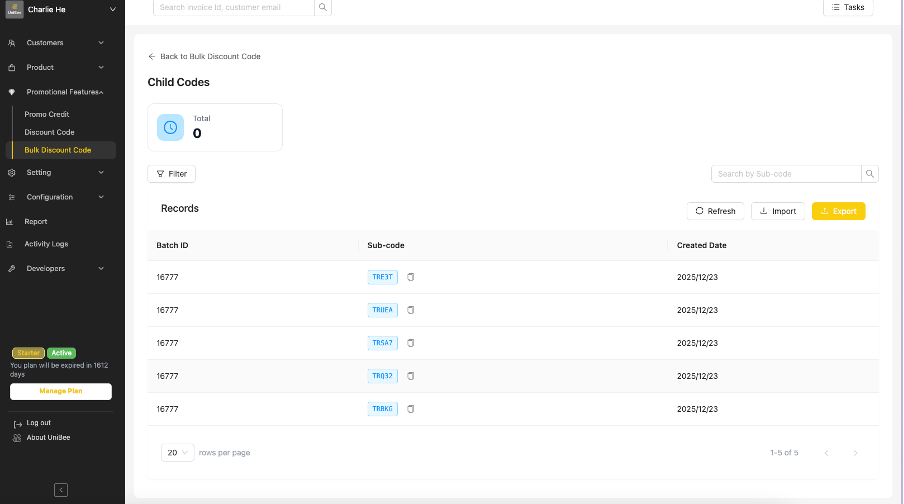
Open a template and go to the **Codes** tab to see every generated code:
| Column | Description |
| :------------- | :------------------------------------- |
| **Code** | The actual discount code. |
| **Status** | Available (unused) or Redeemed. |
| **Used By** | Email of the redeeming user (if used). |
| **Used At** | Redemption date and time (if used). |
| **Created At** | When the code was generated. |
You can filter by status (Available / Redeemed), search by partial code, and filter by usage date range.
### Dashboard metrics
The batch overview surfaces real-time campaign performance:
* **Active Rules** — number of live templates currently running.
* **Total Codes** — total unique child codes generated across all templates.
* **Redemptions** — total successful checkouts using these codes.
* **Redemption Rate** — Redemptions ÷ Total Codes.
### Edit templates
| Status | What you can change |
| :---------- | :--------------------------------------------------------------------------------------------------------------------------------------------------------------------------------------- |
| **Editing** | Any setting, including increasing or decreasing the quantity. |
| **Active** | Discount rules and most settings (changes apply to all codes). Quantity can only be **increased**, never below the number of codes already generated. **Code Prefix cannot be changed.** |
### Expand quantity
To mint more codes after activation:
1. Click **Edit** on the template (or use the quantity-increment action).
2. Increase the **Target Quantity** (for example, 1,000 → 1,500). The total must stay **≤ 10,000**.
3. Save, then click **Generate Codes** again — only the additional codes are created.
### Deactivate
* Click **Deactivate** to disable the template.
* All **unused** codes immediately become invalid; already-used codes are unaffected.
* Reactivating the template restores the unused codes.
### Archive
* Click **Archive** when the campaign is complete.
* Archived templates cannot be edited or reactivated. Templates cannot be deleted (to preserve historical data).
***
## 5. Track individual codes
### Code list
Open a template and go to the **Codes** tab to see every generated code:
| Column | Description |
| :------------- | :------------------------------------- |
| **Code** | The actual discount code. |
| **Status** | Available (unused) or Redeemed. |
| **Used By** | Email of the redeeming user (if used). |
| **Used At** | Redemption date and time (if used). |
| **Created At** | When the code was generated. |
You can filter by status (Available / Redeemed), search by partial code, and filter by usage date range.
 ### Code details
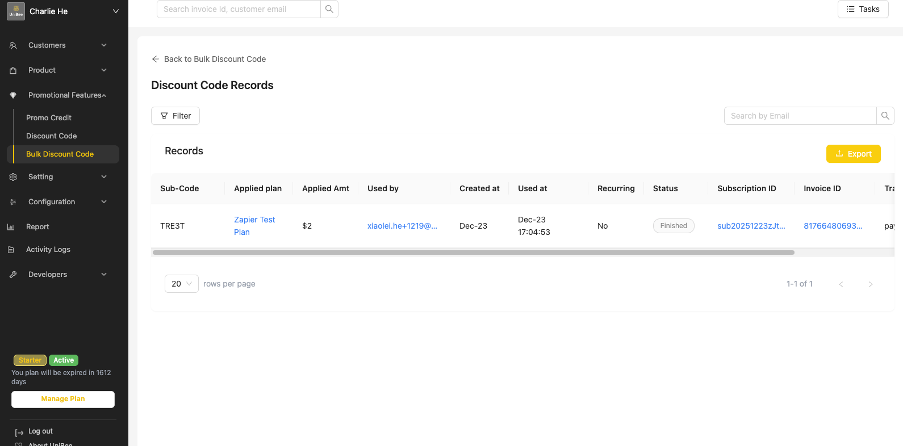
Click any code to see its template, current status, and — if redeemed — the user, redemption time, and the related invoice, subscription, and payment IDs.
### Code details
Click any code to see its template, current status, and — if redeemed — the user, redemption time, and the related invoice, subscription, and payment IDs.
 ### Export
1. On the Codes tab, apply filters if needed (for example, only redeemed codes).
2. Click **Export** and choose Excel or CSV.
3. The export includes each code's status, redeeming user, timestamps, related transaction IDs, and the inherited discount rules.
4. Large exports run asynchronously — download from the **Tasks** section when ready.
See [Inquiry and export](./inquiry-and-export) and [View the usage of a discount code](./view-the-usage-of-a-discount-code) for more.
***
## Best practices
* **Meaningful prefixes:** Use clear, identifiable prefixes (`VIP2025`, `SPRING2025`) so codes are easy to trace.
* **Start small, expand later:** Begin with a modest quantity and increase it if the campaign succeeds.
* **One template per channel:** Use separate templates for different distribution channels to compare performance.
* **Phase very large batches:** For 5,000+ codes, generate in phases and run exports during off-peak hours.
* **Archive finished campaigns:** Keep the dashboard tidy.
***
## FAQ
**Can I change the rules for an individual code?**
No. All codes inherit rules from the template. Edit the template and all (not-yet-used) codes follow the new rules.
**How many codes can one template generate?**
Up to 10,000. For larger campaigns, create multiple templates.
**Can I reduce the quantity after generating codes?**
Not after activation — you can't go below the number already generated. Before activation, you can adjust it freely.
**Can I import codes that don't start with the template prefix?**
Yes. Imported codes can be in any format; they just need to be unique and linked to the template via the `TemplateCode` column.
**What happens to unused codes when I deactivate a template?**
They become invalid immediately. Already-used codes are unaffected, and reactivating restores the unused codes.
**Can I delete a batch template?**
No — archive it instead. Templates are retained to prevent accidental data loss.
***
## Related topics
* [Standard discount codes](./create-edit-copy-and-archive)
* [External discount codes](./external-discount-codes)
* [View the usage of a discount code](./view-the-usage-of-a-discount-code)
* [Inquiry and export](./inquiry-and-export)
### Export
1. On the Codes tab, apply filters if needed (for example, only redeemed codes).
2. Click **Export** and choose Excel or CSV.
3. The export includes each code's status, redeeming user, timestamps, related transaction IDs, and the inherited discount rules.
4. Large exports run asynchronously — download from the **Tasks** section when ready.
See [Inquiry and export](./inquiry-and-export) and [View the usage of a discount code](./view-the-usage-of-a-discount-code) for more.
***
## Best practices
* **Meaningful prefixes:** Use clear, identifiable prefixes (`VIP2025`, `SPRING2025`) so codes are easy to trace.
* **Start small, expand later:** Begin with a modest quantity and increase it if the campaign succeeds.
* **One template per channel:** Use separate templates for different distribution channels to compare performance.
* **Phase very large batches:** For 5,000+ codes, generate in phases and run exports during off-peak hours.
* **Archive finished campaigns:** Keep the dashboard tidy.
***
## FAQ
**Can I change the rules for an individual code?**
No. All codes inherit rules from the template. Edit the template and all (not-yet-used) codes follow the new rules.
**How many codes can one template generate?**
Up to 10,000. For larger campaigns, create multiple templates.
**Can I reduce the quantity after generating codes?**
Not after activation — you can't go below the number already generated. Before activation, you can adjust it freely.
**Can I import codes that don't start with the template prefix?**
Yes. Imported codes can be in any format; they just need to be unique and linked to the template via the `TemplateCode` column.
**What happens to unused codes when I deactivate a template?**
They become invalid immediately. Already-used codes are unaffected, and reactivating restores the unused codes.
**Can I delete a batch template?**
No — archive it instead. Templates are retained to prevent accidental data loss.
***
## Related topics
* [Standard discount codes](./create-edit-copy-and-archive)
* [External discount codes](./external-discount-codes)
* [View the usage of a discount code](./view-the-usage-of-a-discount-code)
* [Inquiry and export](./inquiry-and-export)