> ## Documentation Index
> Fetch the complete documentation index at: https://docs.unibee.dev/llms.txt
> Use this file to discover all available pages before exploring further.
# Create, edit, copy and archive
You can set up, edit, and manage discount codes in UniBee **Discount Code** tab. Discount codes can be used to offer promotional discounts to customers. It is a key tool for driving sales and customer engagement.
UniBee supports three types of discount codes:
* **Standard Discount Codes**: Individual codes with specific usage limits (created in admin portal)
* **Batch Discount Codes**: Generate thousands of unique codes from a single template
* **External Discount Codes**: Programmatically created via API (no admin portal setup needed)
> 💡 **Looking to create batch discount codes?** See the [Batch Discount Codes guide](./batch-discount-codes) for detailed instructions on creating and managing batch templates and generating multiple unique codes.
> 💡 **Need programmatic discount creation?** See the [External Discount Codes guide](./external-discount-codes) for API-based discount creation without admin portal configuration.
### Create a Discount code
To create a Discount Code, please navigate to the **Discount Code** tab and click the **Add a Code** button.
#### General configuration
1. Input the following details:
* **Name**: Enter the name for the discount code.
* **Code**: Provide a unique string that will be distributed to your audience.
* **Quantity**: Specify how many times this code can be used. Set to **0** for unlimited usage.
2. Select the **Discount Type**:
* **Fixed Amount** — deducts a set amount. The discount currency must match the main plan's currency.
* **Percentage** — deducts a percentage of the total (`100` = 1%). No currency required.
3. Define the code **Type**:
* **One-time** — the code can be used for subscription actions (new subscription purchase, renewal, upgrade, or downgrade) and for one-time add-on purchases. It discounts only the invoice where it is applied.
* **Recurring** — the code can be used for subscription actions and can continue discounting future subscription invoices according to its cycle limit. It **cannot** be used for one-time add-on purchases. For recurring codes, input the **Recurring Cycle** number, representing how many billing cycles this discount applies. **0** indicates no limit.
> The code type controls **duration**, not plan eligibility. Plan eligibility is controlled separately by **Apply Discount Code To**.
4. Configure the **Code Apply Date Range** (Time zone: UTC+0).
5. In the **Apply Discount Code To** field, choose how the code is scoped to plans:
* **All plans** — the code applies to every plan.
* **Selected plans** — applies only to the plans you pick.
* **All plans except selected plans** — applies to every plan except the ones you pick.
* **Apply to Plans by Billing Period** — applies only to plans whose billing period matches the period(s) you choose (see the billing-period note under [Advanced configuration](#advanced-configuration)).
* **Apply to Plans except by Billing Period** — applies to all plans except those matching the chosen period(s).
6. On the right side of the tab, you can see a **Summary** of the discount code set up.
7. Click **Save** to save the discount code. The status will be set to **Editing**.
8. While the status is **Editing**, you can modify the discount code settings.
9. To activate the discount code, click the **Activate** button.
#### Plan scope and billing period
The **Apply Discount Code To** field (in General configuration) controls which plans a code applies to. It does **not** require advanced configuration to be enabled.
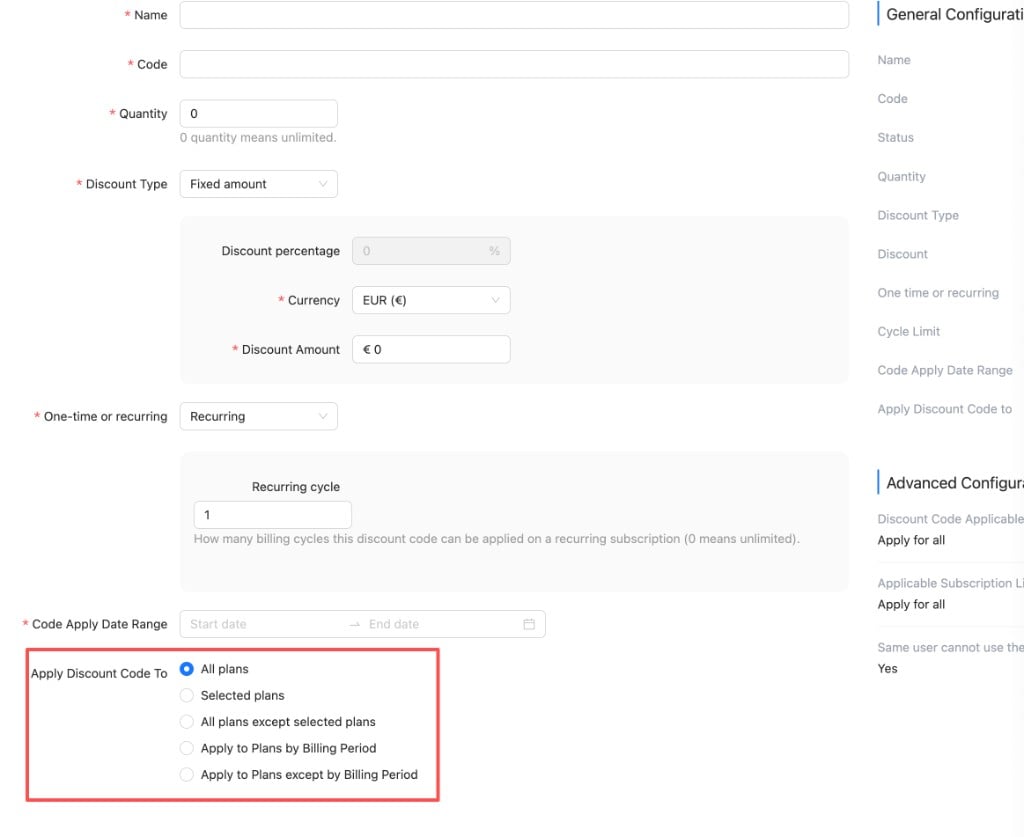 The two billing-period options let you target plans by their billing interval:
* **Apply to Plans by Billing Period** — only plans matching the selected billing period(s) are eligible.
* **Apply to Plans except by Billing Period** — all plans are eligible except those matching the selected period(s).
Billing-period rules can combine multiple intervals (for example `1 month`, `3 months`, `1 year`). If a plan is both included and excluded, exclusion takes precedence.
> ⚠️ **Billing-period matching ignores plan type.**
>
> Billing-period rules match **only** on a plan's interval unit and interval count (for example `1 month` or `1 year`). They **do not** check whether a plan is recurring or one-time. If a one-time add-on plan (such as a minutes or top-up plan) has `1 month` set as its billing period, it **will** be matched by a `1 month` billing-period rule and the discount will apply to it. To exclude such plans, either avoid the billing-period mode (use **Selected plans** / **All plans except selected plans**), or add them to the exclude list.
#### Advanced configuration
For additional customization, billing administrators can enable advanced settings.
The two billing-period options let you target plans by their billing interval:
* **Apply to Plans by Billing Period** — only plans matching the selected billing period(s) are eligible.
* **Apply to Plans except by Billing Period** — all plans are eligible except those matching the selected period(s).
Billing-period rules can combine multiple intervals (for example `1 month`, `3 months`, `1 year`). If a plan is both included and excluded, exclusion takes precedence.
> ⚠️ **Billing-period matching ignores plan type.**
>
> Billing-period rules match **only** on a plan's interval unit and interval count (for example `1 month` or `1 year`). They **do not** check whether a plan is recurring or one-time. If a one-time add-on plan (such as a minutes or top-up plan) has `1 month` set as its billing period, it **will** be matched by a `1 month` billing-period rule and the discount will apply to it. To exclude such plans, either avoid the billing-period mode (use **Selected plans** / **All plans except selected plans**), or add them to the exclude list.
#### Advanced configuration
For additional customization, billing administrators can enable advanced settings.
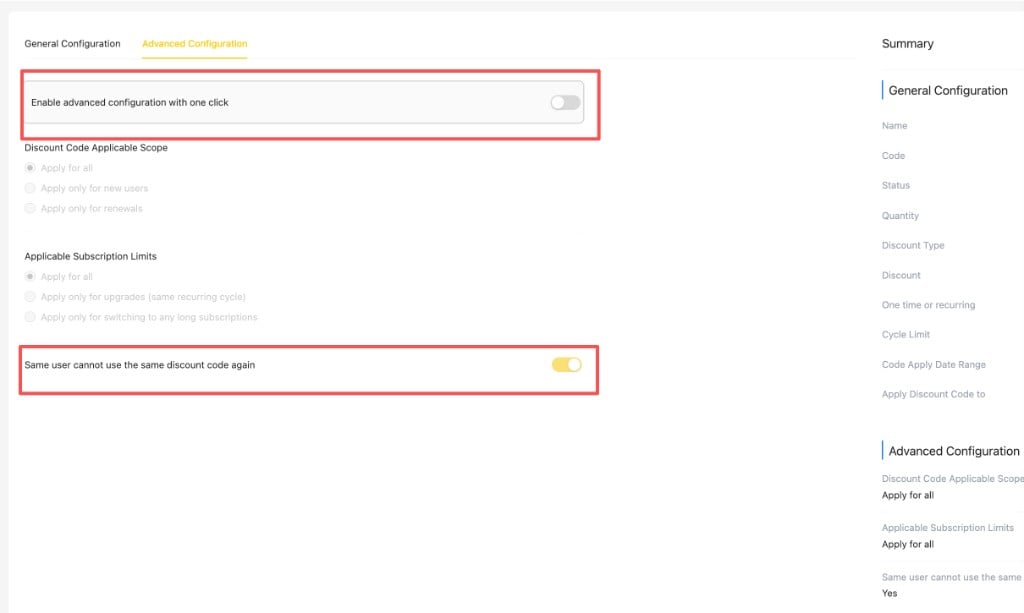 > ⚠️ **Important — "Enable advanced configuration" is the master switch.**
>
> The toggle **Enable advanced configuration with one click** controls all advanced rules below. The following settings **only take effect when this master switch is turned on**:
>
> * **Discount Code Applicable Scope** (Apply for all / new users / renewals)
> * **Applicable Subscription Limits** (Apply for all / upgrades / switching to longer subscriptions)
> * **Same user cannot use the same discount code again**
>
> If the master switch is **off**, these values may still appear in the form and in the right-side **Summary**, but **they are not enforced at checkout**. For example, if you turn on "Same user cannot use the same discount code again" but leave the master switch off, the same user can still reuse the code.
>
> After configuring the advanced rules, make sure **Enable advanced configuration with one click** is **on**, then click **Save**.
1. Turn on **Enable advanced configuration with one click** (master switch). This must be enabled for any of the settings below to take effect.
2. Set the **Discount Code Applicable Scope**, choose one of the following options:
* **Apply for all**: available to every customer.
* **Apply only for new users**: only customers who have **never** completed a paid subscription with you — i.e. their very first subscription purchase. (A customer counts as "new" until they have at least one paid subscription invoice.)
* **Apply only for renewals**: only **existing** customers who already have at least one paid subscription. This covers everything **after** the first purchase — **renewals, upgrades, and downgrades**. A customer who has never paid for a subscription cannot use the code.
> The "new vs. existing" decision is based on whether the customer already has a **paid subscription invoice** with you — not on the specific action being performed.
3. Set the Applicable Subscription Limits, choose one of the following options:
* Apply for all
* Apply only for upgrades (same recurring cycle)
* Apply only for switching to longer subscriptions
4. Restrict Reuse by the Same User:
* By default, the Same user cannot use the same discount code again option is enabled. You can disable this setting if required.
* This restriction is only enforced when the master switch above is on.
> 💡 Plan scope — including **Apply to Plans by Billing Period** — is configured in the **Apply Discount Code To** field under General configuration and does **not** require the master switch. See [Plan scope and billing period](#plan-scope-and-billing-period).
By following these steps, you can create, configure, and activate a Discount Code tailored to your business needs.
### Edit a Discount Code
1. Click the **Edit** icon in the **Actions** column to open the code definition page.
2. Update the following settings as needed:
* **Quantity**
* **Code Apply Date Range**
* **Apply to Which Plans**
3. Click **Save** to apply the changes.
### Clone a Discount Code
1. Click the **Copy** icon in the **Actions** column of the desired discount code.
2. All the settings of the new Discount Code will be the same as the copied code, including **Advanced configuration**.
3. On the new code definition page, modify any field in both **General configuration** and **Advanced configuration**.
4. Click **Save** to create the new discount code.
### Archive a Discount Code
1. Click the **Archive** icon in the **Actions** column of the discount code.
2. Confirm the action by clicking **OK** in the pop-up window that asks, "Are you sure to archive this coupon code?".
3. You will receive a notification: **"Discount code archived successfully."**
4. The discount code will be set to **Archived** status and appear at the end of the list in grey.
> ⚠️ **Important — "Enable advanced configuration" is the master switch.**
>
> The toggle **Enable advanced configuration with one click** controls all advanced rules below. The following settings **only take effect when this master switch is turned on**:
>
> * **Discount Code Applicable Scope** (Apply for all / new users / renewals)
> * **Applicable Subscription Limits** (Apply for all / upgrades / switching to longer subscriptions)
> * **Same user cannot use the same discount code again**
>
> If the master switch is **off**, these values may still appear in the form and in the right-side **Summary**, but **they are not enforced at checkout**. For example, if you turn on "Same user cannot use the same discount code again" but leave the master switch off, the same user can still reuse the code.
>
> After configuring the advanced rules, make sure **Enable advanced configuration with one click** is **on**, then click **Save**.
1. Turn on **Enable advanced configuration with one click** (master switch). This must be enabled for any of the settings below to take effect.
2. Set the **Discount Code Applicable Scope**, choose one of the following options:
* **Apply for all**: available to every customer.
* **Apply only for new users**: only customers who have **never** completed a paid subscription with you — i.e. their very first subscription purchase. (A customer counts as "new" until they have at least one paid subscription invoice.)
* **Apply only for renewals**: only **existing** customers who already have at least one paid subscription. This covers everything **after** the first purchase — **renewals, upgrades, and downgrades**. A customer who has never paid for a subscription cannot use the code.
> The "new vs. existing" decision is based on whether the customer already has a **paid subscription invoice** with you — not on the specific action being performed.
3. Set the Applicable Subscription Limits, choose one of the following options:
* Apply for all
* Apply only for upgrades (same recurring cycle)
* Apply only for switching to longer subscriptions
4. Restrict Reuse by the Same User:
* By default, the Same user cannot use the same discount code again option is enabled. You can disable this setting if required.
* This restriction is only enforced when the master switch above is on.
> 💡 Plan scope — including **Apply to Plans by Billing Period** — is configured in the **Apply Discount Code To** field under General configuration and does **not** require the master switch. See [Plan scope and billing period](#plan-scope-and-billing-period).
By following these steps, you can create, configure, and activate a Discount Code tailored to your business needs.
### Edit a Discount Code
1. Click the **Edit** icon in the **Actions** column to open the code definition page.
2. Update the following settings as needed:
* **Quantity**
* **Code Apply Date Range**
* **Apply to Which Plans**
3. Click **Save** to apply the changes.
### Clone a Discount Code
1. Click the **Copy** icon in the **Actions** column of the desired discount code.
2. All the settings of the new Discount Code will be the same as the copied code, including **Advanced configuration**.
3. On the new code definition page, modify any field in both **General configuration** and **Advanced configuration**.
4. Click **Save** to create the new discount code.
### Archive a Discount Code
1. Click the **Archive** icon in the **Actions** column of the discount code.
2. Confirm the action by clicking **OK** in the pop-up window that asks, "Are you sure to archive this coupon code?".
3. You will receive a notification: **"Discount code archived successfully."**
4. The discount code will be set to **Archived** status and appear at the end of the list in grey.