> ## Documentation Index
> Fetch the complete documentation index at: https://docs.unibee.dev/llms.txt
> Use this file to discover all available pages before exploring further.
# Split Payment on Invoice Hosted Page
> Use split payment to handle invoices that exceed a single payment method's maximum amount, by creating multiple smaller payments on the hosted invoice page.
## Overview
Some payment methods (for example, certain Payssion methods) have a **maximum amount per transaction**.\
When an invoice total is higher than the gateway's limit, UniBee allows you to use **Split Payment** to break the invoice into multiple smaller payments while keeping **one single invoice**.
* The invoice will only become **Paid** after **all split payments succeed**.
* Subscriptions or subscription updates associated with the invoice are **only processed after the invoice is Paid**.
* Partial payments **do not** activate subscriptions.
## When Split Payment Is Triggered
If a customer tries to pay the **full invoice amount** from Checkout (or the invoice hosted page) and the amount exceeds the payment method's maximum allowed amount, UniBee shows a **Payment Error** dialog:
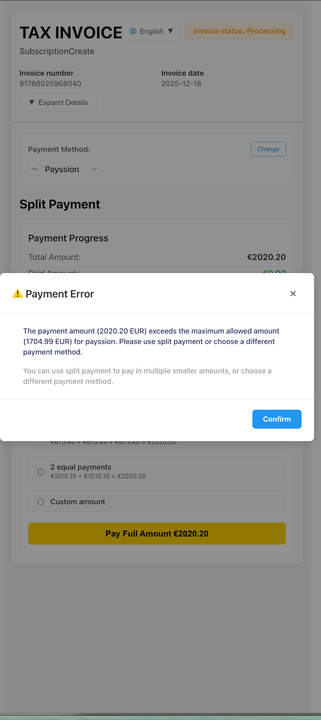 The dialog explains:
* The attempted payment amount (for example, `2020.20 EUR`) is higher than the gateway's maximum (for example, `1704.99 EUR`).
* The customer should either:
* Use **Split Payment** to pay in multiple smaller amounts, or
* Choose a different payment method that supports the full amount.
After closing the dialog, the customer can use the Split Payment section on the invoice hosted page.
## Split Payment Section on Invoice Hosted Page
When the invoice status is **Processing**, the hosted invoice page shows a **Split Payment** section:
The dialog explains:
* The attempted payment amount (for example, `2020.20 EUR`) is higher than the gateway's maximum (for example, `1704.99 EUR`).
* The customer should either:
* Use **Split Payment** to pay in multiple smaller amounts, or
* Choose a different payment method that supports the full amount.
After closing the dialog, the customer can use the Split Payment section on the invoice hosted page.
## Split Payment Section on Invoice Hosted Page
When the invoice status is **Processing**, the hosted invoice page shows a **Split Payment** section:
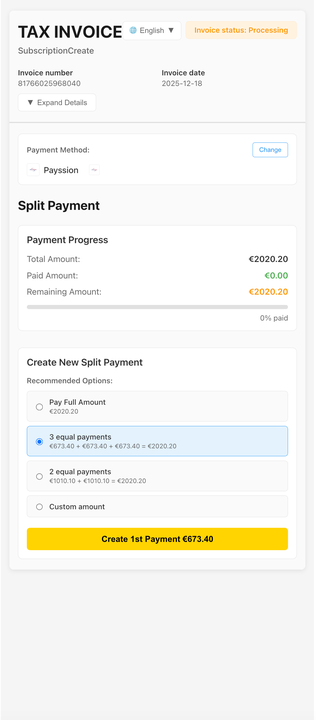 This section includes:
* **Payment Progress**
* **Total Amount**: The full invoice amount.
* **Paid Amount**: Sum of all successful split payments.
* **Remaining Amount**: Amount that still needs to be paid.
* **Create New Split Payment**
* **Recommended Options** (auto-calculated based on the remaining amount), for example:
* Pay Full Amount
* 3 equal payments
* 2 equal payments
* **Custom amount**: Let the customer enter a custom split amount (within the remaining amount).
When the customer selects an option and clicks **Create 1st Payment**, UniBee creates a new Payment for the chosen amount and redirects the customer to complete that payment.
## Payment Progress and Invoice Status
* Each successful split payment **reduces the Remaining Amount** and increases the Paid Amount.
* Once the **Remaining Amount reaches 0**, the invoice moves to **Paid** status.
* Only after the invoice is Paid will UniBee:
* Activate the subscription (for first invoices), or
* Apply the corresponding subscription update / next billing cycle payment.
If some split payments fail or are cancelled, the invoice remains **Processing** and the customer can continue creating new split payments until the full amount is paid (or you choose another payment method).
## Accessing the Split Payment Page
You can send the **Invoice hosted link** to your customer (for example, from the Invoice detail page in the admin portal).\
When the invoice supports split payment:
* The hosted page will always show the Split Payment section while the invoice is **Processing**.
* After the invoice becomes **Paid**, the Split Payment section becomes **read-only**, showing historical split payments and final payment progress.
This section includes:
* **Payment Progress**
* **Total Amount**: The full invoice amount.
* **Paid Amount**: Sum of all successful split payments.
* **Remaining Amount**: Amount that still needs to be paid.
* **Create New Split Payment**
* **Recommended Options** (auto-calculated based on the remaining amount), for example:
* Pay Full Amount
* 3 equal payments
* 2 equal payments
* **Custom amount**: Let the customer enter a custom split amount (within the remaining amount).
When the customer selects an option and clicks **Create 1st Payment**, UniBee creates a new Payment for the chosen amount and redirects the customer to complete that payment.
## Payment Progress and Invoice Status
* Each successful split payment **reduces the Remaining Amount** and increases the Paid Amount.
* Once the **Remaining Amount reaches 0**, the invoice moves to **Paid** status.
* Only after the invoice is Paid will UniBee:
* Activate the subscription (for first invoices), or
* Apply the corresponding subscription update / next billing cycle payment.
If some split payments fail or are cancelled, the invoice remains **Processing** and the customer can continue creating new split payments until the full amount is paid (or you choose another payment method).
## Accessing the Split Payment Page
You can send the **Invoice hosted link** to your customer (for example, from the Invoice detail page in the admin portal).\
When the invoice supports split payment:
* The hosted page will always show the Split Payment section while the invoice is **Processing**.
* After the invoice becomes **Paid**, the Split Payment section becomes **read-only**, showing historical split payments and final payment progress.