> ## Documentation Index
> Fetch the complete documentation index at: https://docs.unibee.dev/llms.txt
> Use this file to discover all available pages before exploring further.
# Creating multi phase plans
# Creating Multi-Phase Plans
This guide walks you through building a multi-phase subscription timeline in the Admin Panel: adding a trial phase, configuring introductory phases, and reviewing the timeline before publishing.
> If you are not yet familiar with how phases work, read [Understanding Multi-Phase Subscriptions](/documentation/multi-phase/understanding-multi-phase-subscriptions) first.
## Before you start
* Decide whether the plan needs a trial phase.
* Define the number of introductory phases, if any.
* Confirm the duration and price of each phase.
* Review the complete timeline before publishing.
## Step 1: Open the plan timeline
In the **Advanced Setup** section of the plan configuration page, click **Add Phase** to start building the subscription timeline.
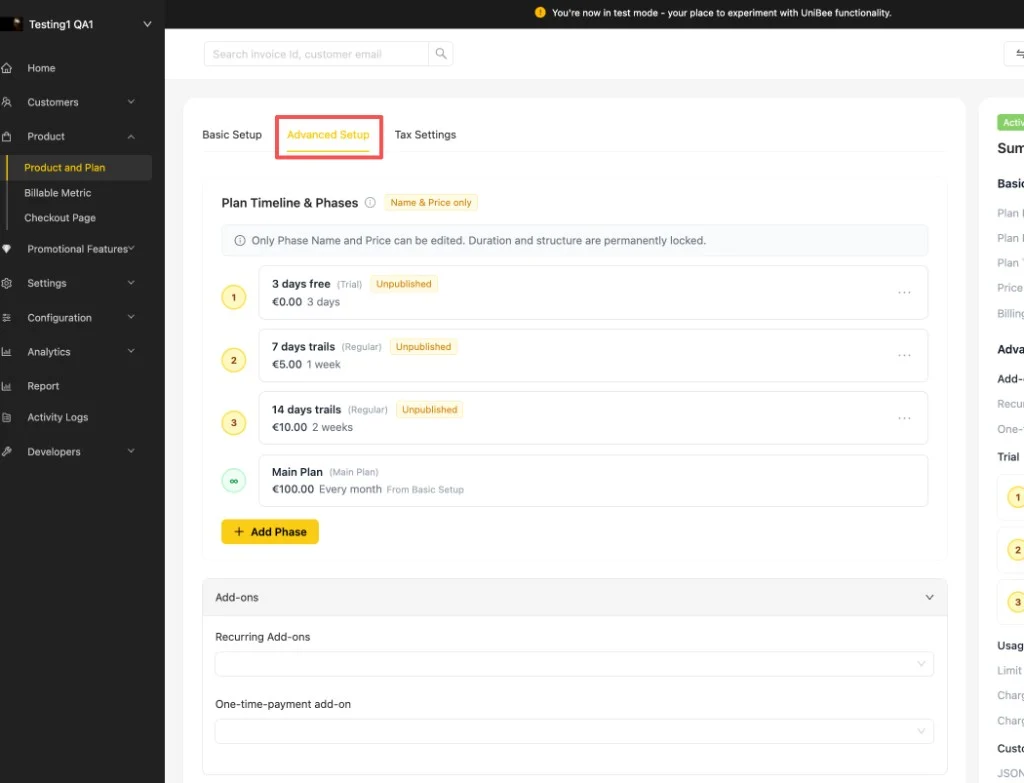 Each phase appears in order with its name, price, and duration. The main plan always sits at the end of the timeline. Once a plan is activated or published, the duration and structure are locked and only the phase name and price can be edited.
## Step 2: Configure the trial phase
| Setting | Description |
| -------------- | -------------------------------------------------------------------- |
| Starting point | Select the **Trial** tab when adding the first phase. |
| Templates | Use 7-day, 14-day, or 30-day templates for faster setup. |
| Price | Set the trial as free with a `0` amount, or use a custom paid price. |
| Limit | Only one trial phase is allowed per plan. |
When you add or edit a phase, the **Edit The Phase** dialog lets you configure its details:
Each phase appears in order with its name, price, and duration. The main plan always sits at the end of the timeline. Once a plan is activated or published, the duration and structure are locked and only the phase name and price can be edited.
## Step 2: Configure the trial phase
| Setting | Description |
| -------------- | -------------------------------------------------------------------- |
| Starting point | Select the **Trial** tab when adding the first phase. |
| Templates | Use 7-day, 14-day, or 30-day templates for faster setup. |
| Price | Set the trial as free with a `0` amount, or use a custom paid price. |
| Limit | Only one trial phase is allowed per plan. |
When you add or edit a phase, the **Edit The Phase** dialog lets you configure its details:
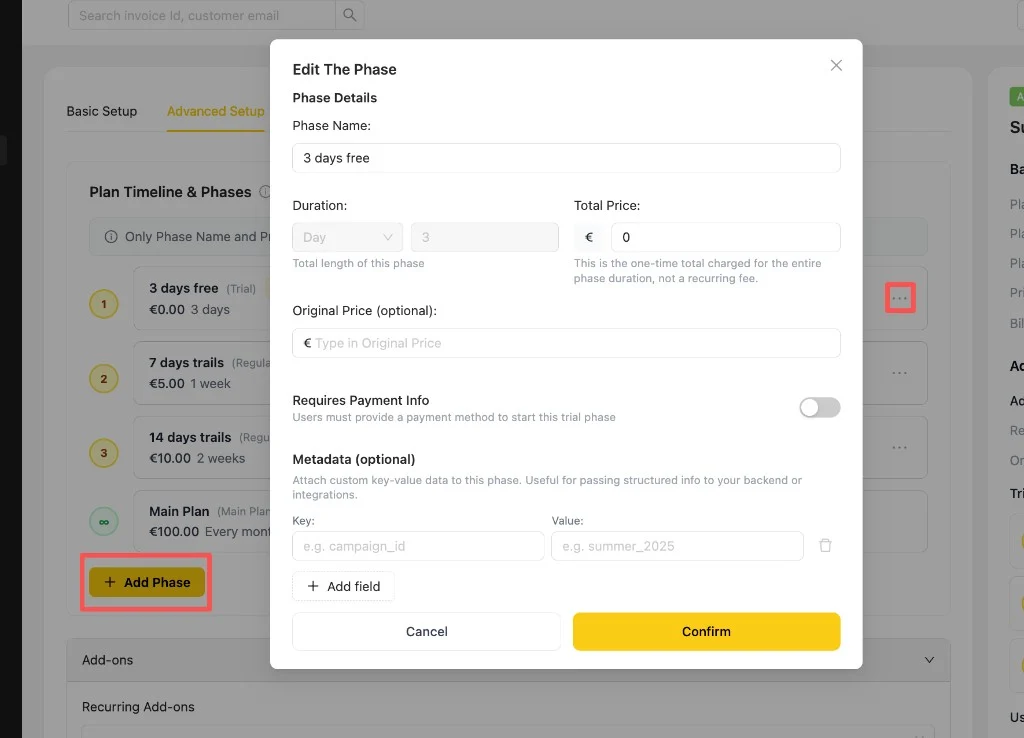 | Field | Description |
| ------------------------- | -------------------------------------------------------------------------------------------------- |
| Phase Name | The label shown for this phase in the timeline and at checkout. |
| Duration | The total length of this phase (for example, 3 days). |
| Total Price | The one-time total charged for the entire phase duration, not a recurring fee. |
| Original Price (optional) | A reference price used to show a discount against the phase price. |
| Requires Payment Info | When enabled, users must provide a payment method to start this trial phase. |
| Metadata (optional) | Attach custom key-value data to the phase to pass structured info to your backend or integrations. |
Click **Confirm** to save the phase, or **Cancel** to discard it.
## Step 3: Add introductory phases
| Setting | Description |
| ------------------- | --------------------------------------------------------------- |
| Purpose | Support promotional pricing or staged onboarding. |
| Templates | Use common starting configurations, then adjust them as needed. |
| Configurable fields | Duration, price, and billing behavior. |
| Ordering | Introductory phases can be reordered before publishing. |
## Step 4: Review the timeline
Review the full sequence before publishing. The timeline should match the customer journey shown during checkout and after purchase.
Once you activate or publish the plan, the phase order becomes fixed.
## Next steps
* See what your customers will see in [Customer Experience](/documentation/multi-phase/customer-experience).
| Field | Description |
| ------------------------- | -------------------------------------------------------------------------------------------------- |
| Phase Name | The label shown for this phase in the timeline and at checkout. |
| Duration | The total length of this phase (for example, 3 days). |
| Total Price | The one-time total charged for the entire phase duration, not a recurring fee. |
| Original Price (optional) | A reference price used to show a discount against the phase price. |
| Requires Payment Info | When enabled, users must provide a payment method to start this trial phase. |
| Metadata (optional) | Attach custom key-value data to the phase to pass structured info to your backend or integrations. |
Click **Confirm** to save the phase, or **Cancel** to discard it.
## Step 3: Add introductory phases
| Setting | Description |
| ------------------- | --------------------------------------------------------------- |
| Purpose | Support promotional pricing or staged onboarding. |
| Templates | Use common starting configurations, then adjust them as needed. |
| Configurable fields | Duration, price, and billing behavior. |
| Ordering | Introductory phases can be reordered before publishing. |
## Step 4: Review the timeline
Review the full sequence before publishing. The timeline should match the customer journey shown during checkout and after purchase.
Once you activate or publish the plan, the phase order becomes fixed.
## Next steps
* See what your customers will see in [Customer Experience](/documentation/multi-phase/customer-experience).