> ## Documentation Index
> Fetch the complete documentation index at: https://docs.unibee.dev/llms.txt
> Use this file to discover all available pages before exploring further.
# Status
export const SubStatus = ({statusId}) => {
const commonStyle = {
borderRadius: "4px",
display: "inline-block",
marginInlineEnd: "8px",
paddingInline: "7px",
fontSize: "12px"
};
const status = {
1: {
bgColor: "#fff0f6",
color: "#c41d7f",
border: "1px solid #ffadd2",
text: "Pending"
},
2: {
bgColor: "#87d068",
color: "#FFF",
border: "1px solid transparent",
text: "Active"
},
3: {},
4: {
bgColor: "#f9f0ff",
color: "#531dab",
border: "1px solid #d3adf7",
text: "Cancelled"
},
5: {
bgColor: "#fff1f0",
color: "#cf1322",
border: "1px solid #ffa39e",
text: "Expired"
},
6: {},
7: {
bgColor: "cyan",
color: "#000",
border: "1px solid #eee",
text: "Incomplete"
},
8: {
bgColor: "#e6f4ff",
color: "#0958d9",
border: "1px solid #91caff",
text: "Processing"
},
9: {
bgColor: "rgb(183, 28, 28)",
color: "#FFF",
border: "1px solid #eee",
text: "Failed"
}
};
const s = status[statusId];
return
{s.text}
;
};
## Life cycles
Unibee supports changing existing subscriptions without having to cancel and recreate them. Some of the most significant changes you might make are:
* Changing to a plan with a different base cost
* Changing the quantity
* Append or remove to different addon or it's quantity
* Canceling an active subscription
* By Default, use the pending updates feature with these changes so that the updates are only applied if the new invoice is successfully paid.
* Adding a trial period to an active subscription
Proration ensures that customers are billed accurately, but a proration can result in different payment amounts than you expect, which may be confusing. Also keep in mind that prorations are never automatically refunded to a customer nor immediately billed, although you can do both manually. When applying changes to existing subscriptions, discounts don’t affect the resulting proration line items.
UniBee has multi apis for subscription creation and update
* You can preview a invoice of subscription create to view the amount before create it by `Create Preview Api`, And submit it by `Create Api`
* You can preview a proration of subscription change to view the amount before applying the changes by Update Preview Api, And submit by `Update Api Submit`
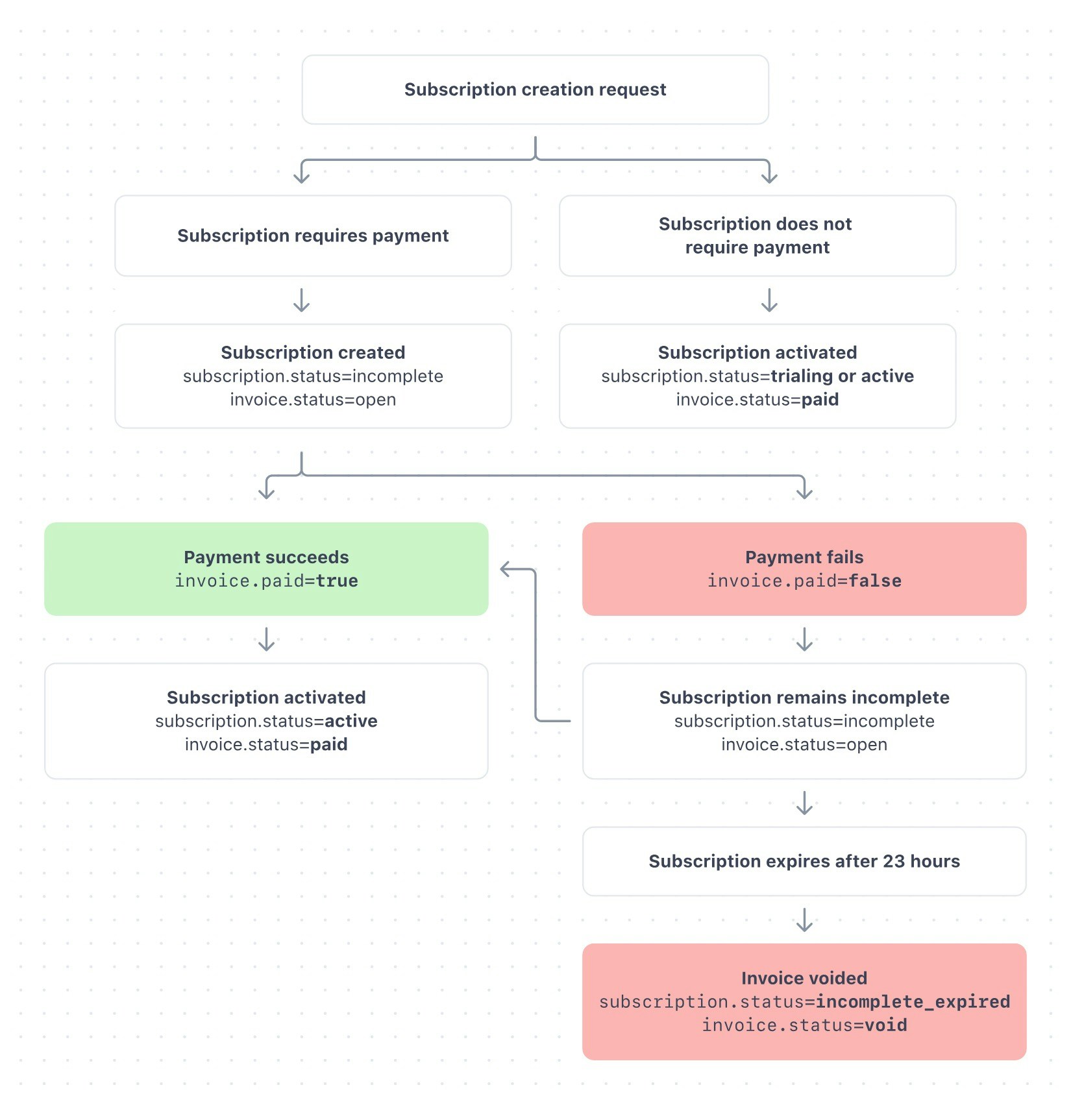
This is common subscription flow looks like:
1. You create the subscription. The status of the subscription is create .
* UniBee sends a `subscription.created` event webhook event.
2. An invoice is created for the subscription. The status of the invoice is `process`.
3. The customer pays the first invoice.
4. If the payment succeeds:
* The subscription status changed to `active`
* The invoice status is set to `paid`
* UniBee sends an `subscription.updated` event webhook event.
5. You provision access to your product. You can confirm whether the invoice has been paid by:
* Setting up a webhook endpoint and listening for the `subscription.updated` event.
* Manually checking the subscription object and looking for `subscription.status=active`. The status becomes active when the invoice has been paid either through an automatic charge or having the customer pay manually.
The status can also become trialing if you offer trials that don’t require payments. When the trial is over, the subscription moves to active and the subscribed customer starts to be charged.
 ## Status
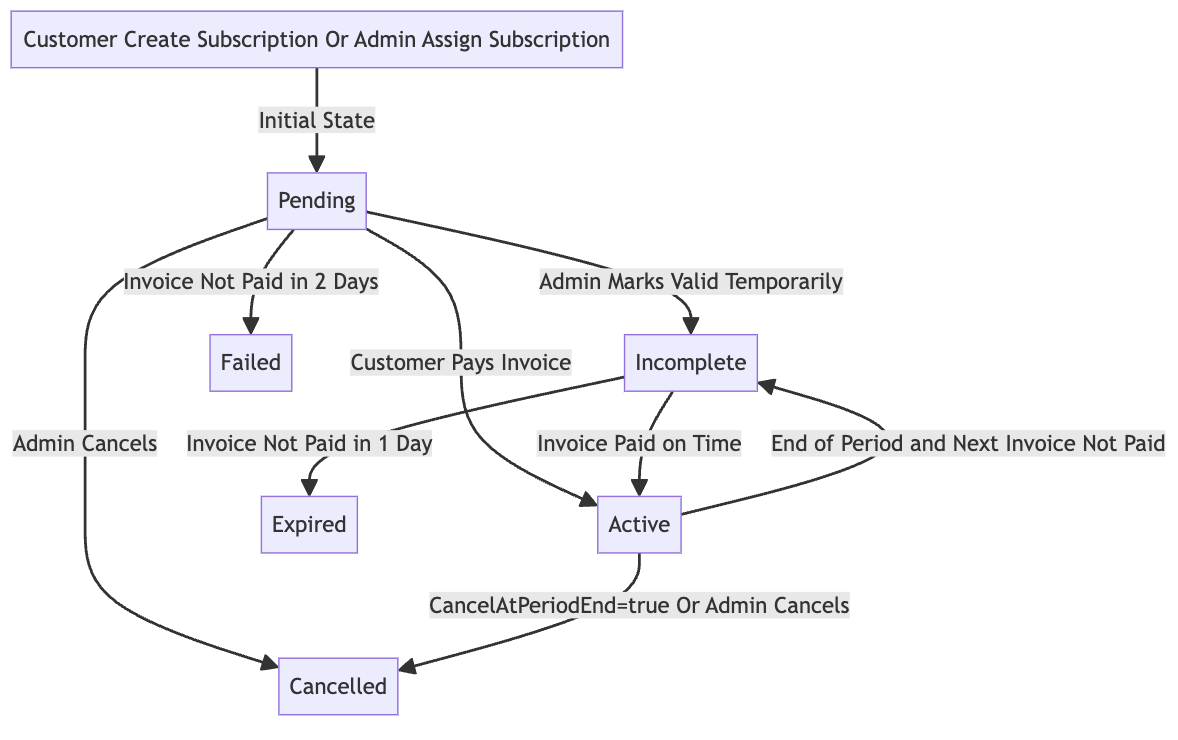
* The status indicates the initial
state of a subscription when it is created before its payment is successful or
if it does not require payment. This status does not grant access to plan features
until it changes to `Active` or `Incomplete`.
* **Next Step 1**: If the customer successfully pays the latest\_invoice, the status will change to Active.
* **Next Step 2**: An admin can temporarily mark the subscription as valid on the admin portal, changing the status to Incomplete.
* **Next Step 3**: An admin can mark the latest\_invoice as paid (only applicable for wire transfers), which will change the status to Active.
* **Next Step 4**: An admin can cancel the subscription immediately, changing the status to Cancelled.
* **Next Step 5**: If the latest\_invoice payment is not successful within **4 days**, the status will change based on payment history:
* **Never paid before** (first payment): Status changes to `Failed` (statusId=9)
* **Previously paid before** (renewal payment): Status changes to `Expired` (statusId=5)
**Example:**
* Customer creates subscription on January 1, 2025 → Status: `Pending`
* If payment is not completed by January 5, 2025 (4 days later):
* First-time subscription (never paid) → Status: `Failed`
* Renewal subscription (had previous payments) → Status: `Expired`
* An subscription is in good standing, with the invoice for the current billing cycle paid. It is safe to provision your product for the customer.
* **Next Step 1**: The status will change to Incomplete at the end of the current period if the next billing cycle invoice is not paid. An Incomplete subscription is also safe for provisioning your product to the customer.
* **Next Step 2**: The status will automatically change to Cancelled at the end of the current period if CancelAtPeriodEnd is set to true.
* **Next Step 3**: An admin can cancel the subscription immediately, changing the status to Cancelled.
* The status is always caused by the customer or admin.
* **Next Action** : Call the renew subscription action or API to start the renewal process. The status will change to Active if the latest\_invoice payment is successful.
* The status means the automatic payment has failed and the subscription is out of time.
* **Next Action**: Call the renew subscription action or API to start the renewal process. The status will change to Active if the latest\_invoice payment is successful.
* An subscription means the latest\_invoice needs to be paid within a certain timeframe (default is 24 hours) to activate the subscription. Alternatively, the payment may require customer action, such as authentication.
* **Next Step 1**: The status will change to Expired if the latest\_invoice is not paid within the specified timeframe.
* **Next Step 2** : The status will change to Active if the latest\_invoice is paid on time.
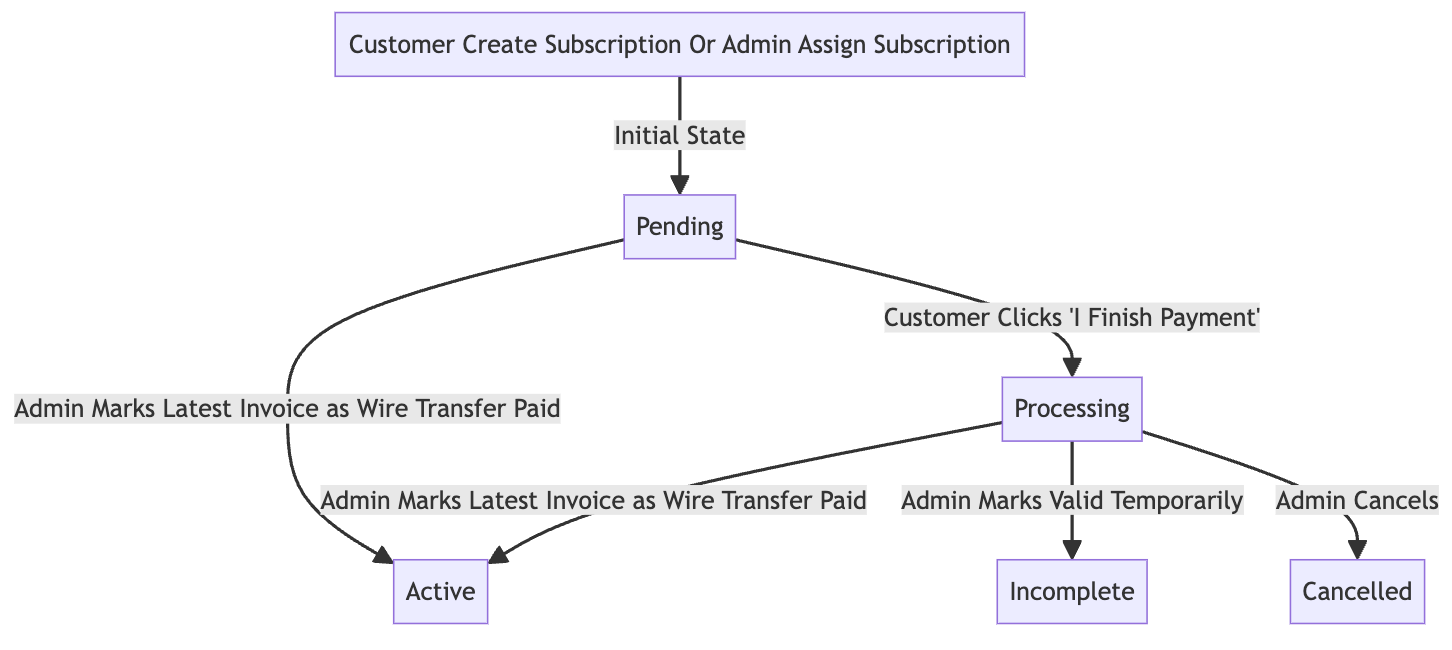
* is available for wire transfers. The subscription status
changes from Pending to Processing after the customer clicks "I Finished Payment."
Admins can filter Processing subscriptions to verify if the wire transfer payment
was successful. If verified offline, the admin can mark the invoice as paid.
* **Next Step 1**: An admin can temporarily mark the subscription as valid on the admin portal, changing the status to Incomplete.
* **Next Step 2**: An admin can mark the latest\_invoice as paid, changing the status to Active (only applicable for wire transfers).
* **Next Step 3**: An admin can cancel the subscription immediately, changing the status to Cancelled.
* **Next Step 4**: The status will change after **4 days** if the latest\_invoice payment is not successful:
* **Never paid before**: Status changes to `Failed` (statusId=9)
* **Previously paid before**: Status changes to `Expired` (statusId=5)
* A subscription will turn to when a subscription in `Pending` status times out (after 4 days) and the customer has **never made a payment** before. This indicates the first payment attempt failed or expired without any successful payment history.
**Example:**
* Customer creates subscription on January 1, 2025 → Status: `Pending`
* Customer does not complete payment
* After 4 days (January 5, 2025): Status automatically changes to `Failed`
* This typically means the first payment attempt was unsuccessful and no payment was ever recorded
## Status flow
## Status
* The status indicates the initial
state of a subscription when it is created before its payment is successful or
if it does not require payment. This status does not grant access to plan features
until it changes to `Active` or `Incomplete`.
* **Next Step 1**: If the customer successfully pays the latest\_invoice, the status will change to Active.
* **Next Step 2**: An admin can temporarily mark the subscription as valid on the admin portal, changing the status to Incomplete.
* **Next Step 3**: An admin can mark the latest\_invoice as paid (only applicable for wire transfers), which will change the status to Active.
* **Next Step 4**: An admin can cancel the subscription immediately, changing the status to Cancelled.
* **Next Step 5**: If the latest\_invoice payment is not successful within **4 days**, the status will change based on payment history:
* **Never paid before** (first payment): Status changes to `Failed` (statusId=9)
* **Previously paid before** (renewal payment): Status changes to `Expired` (statusId=5)
**Example:**
* Customer creates subscription on January 1, 2025 → Status: `Pending`
* If payment is not completed by January 5, 2025 (4 days later):
* First-time subscription (never paid) → Status: `Failed`
* Renewal subscription (had previous payments) → Status: `Expired`
* An subscription is in good standing, with the invoice for the current billing cycle paid. It is safe to provision your product for the customer.
* **Next Step 1**: The status will change to Incomplete at the end of the current period if the next billing cycle invoice is not paid. An Incomplete subscription is also safe for provisioning your product to the customer.
* **Next Step 2**: The status will automatically change to Cancelled at the end of the current period if CancelAtPeriodEnd is set to true.
* **Next Step 3**: An admin can cancel the subscription immediately, changing the status to Cancelled.
* The status is always caused by the customer or admin.
* **Next Action** : Call the renew subscription action or API to start the renewal process. The status will change to Active if the latest\_invoice payment is successful.
* The status means the automatic payment has failed and the subscription is out of time.
* **Next Action**: Call the renew subscription action or API to start the renewal process. The status will change to Active if the latest\_invoice payment is successful.
* An subscription means the latest\_invoice needs to be paid within a certain timeframe (default is 24 hours) to activate the subscription. Alternatively, the payment may require customer action, such as authentication.
* **Next Step 1**: The status will change to Expired if the latest\_invoice is not paid within the specified timeframe.
* **Next Step 2** : The status will change to Active if the latest\_invoice is paid on time.
* is available for wire transfers. The subscription status
changes from Pending to Processing after the customer clicks "I Finished Payment."
Admins can filter Processing subscriptions to verify if the wire transfer payment
was successful. If verified offline, the admin can mark the invoice as paid.
* **Next Step 1**: An admin can temporarily mark the subscription as valid on the admin portal, changing the status to Incomplete.
* **Next Step 2**: An admin can mark the latest\_invoice as paid, changing the status to Active (only applicable for wire transfers).
* **Next Step 3**: An admin can cancel the subscription immediately, changing the status to Cancelled.
* **Next Step 4**: The status will change after **4 days** if the latest\_invoice payment is not successful:
* **Never paid before**: Status changes to `Failed` (statusId=9)
* **Previously paid before**: Status changes to `Expired` (statusId=5)
* A subscription will turn to when a subscription in `Pending` status times out (after 4 days) and the customer has **never made a payment** before. This indicates the first payment attempt failed or expired without any successful payment history.
**Example:**
* Customer creates subscription on January 1, 2025 → Status: `Pending`
* Customer does not complete payment
* After 4 days (January 5, 2025): Status automatically changes to `Failed`
* This typically means the first payment attempt was unsuccessful and no payment was ever recorded
## Status flow
 ## Wire transfer status flow