

Overview
Some payment methods (for example, certain Payssion methods) have a maximum amount per transaction.When an invoice total is higher than the gateway’s limit, UniBee allows you to use Split Payment to break the invoice into multiple smaller payments while keeping one single invoice.
- The invoice will only become Paid after all split payments succeed.
- Subscriptions or subscription updates associated with the invoice are only processed after the invoice is Paid.
- Partial payments do not activate subscriptions.
When Split Payment Is Triggered
If a customer tries to pay the full invoice amount from Checkout (or the invoice hosted page) and the amount exceeds the payment method’s maximum allowed amount, UniBee shows a Payment Error dialog: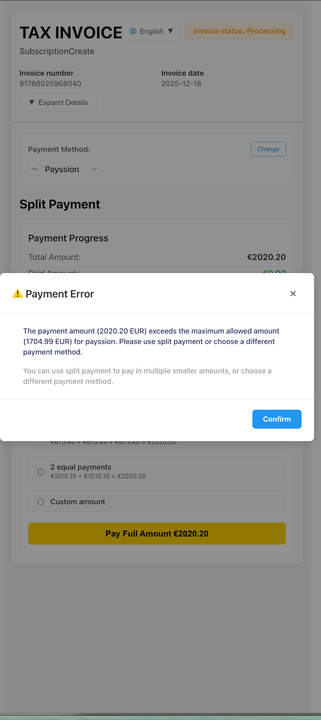
- The attempted payment amount (for example,
2020.20 EUR) is higher than the gateway’s maximum (for example,1704.99 EUR). - The customer should either:
- Use Split Payment to pay in multiple smaller amounts, or
- Choose a different payment method that supports the full amount.
Split Payment Section on Invoice Hosted Page
When the invoice status is Processing, the hosted invoice page shows a Split Payment section: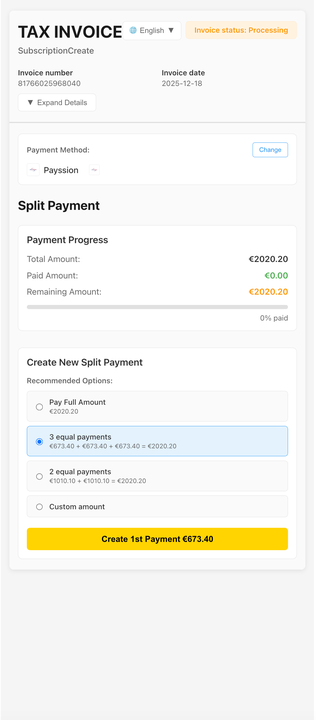
- Payment Progress
- Total Amount: The full invoice amount.
- Paid Amount: Sum of all successful split payments.
- Remaining Amount: Amount that still needs to be paid.
- Create New Split Payment
- Recommended Options (auto-calculated based on the remaining amount), for example:
- Pay Full Amount
- 3 equal payments
- 2 equal payments
- Custom amount: Let the customer enter a custom split amount (within the remaining amount).
- Recommended Options (auto-calculated based on the remaining amount), for example:
Payment Progress and Invoice Status
- Each successful split payment reduces the Remaining Amount and increases the Paid Amount.
- Once the Remaining Amount reaches 0, the invoice moves to Paid status.
- Only after the invoice is Paid will UniBee:
- Activate the subscription (for first invoices), or
- Apply the corresponding subscription update / next billing cycle payment.
Accessing the Split Payment Page
You can send the Invoice hosted link to your customer (for example, from the Invoice detail page in the admin portal).When the invoice supports split payment:
- The hosted page will always show the Split Payment section while the invoice is Processing.
- After the invoice becomes Paid, the Split Payment section becomes read-only, showing historical split payments and final payment progress.