

UniBee Zapier Integration Guide
Zapier lets you connect UniBee to over 6,000+ other web services. Automated connections called Zaps, set up in minutes with no coding, can automate your day-to-day tasks and build workflows between apps that otherwise wouldn’t be possible. This guide explains how to connect UniBee to Zapier and use UniBee events to trigger automated workflows.1. Common Use Cases
In Zapier, UniBee primarily acts as a Trigger. This means when something happens in UniBee (like a new subscription or a payment), it automatically kicks off actions in other apps.A. Sync Sales & CRM Data
- Trigger: When a New Subscription is created in UniBee.
- Action: Create or update a contact in HubSpot, Salesforce, or Pipedrive.
- Goal: Keep your sales team updated without manual data entry.
B. Real-time Team Alerts
- Trigger: When a New Payment Event (specifically a failure) or Subscription Cancelled event occurs.
- Action: Send a notification to a specific Slack or Microsoft Teams channel (e.g.,
#churn-risk). - Goal: Allow your Customer Success team to react immediately to billing issues.
C. Accounting & Archiving
- Trigger: When a New Invoice Event (Paid) occurs.
- Action: Add a new row to Google Sheets or create a sales receipt in QuickBooks/Xero.
- Goal: Simplify month-end reconciliation and keep backup records.
D. Automated Onboarding
- Trigger: When a New User is created in UniBee.
- Action: Add the user to an email marketing list in Mailchimp or ActiveCampaign.
- Goal: Automatically send welcome emails or onboarding sequences.
2. Prerequisites
Before you begin, ensure you have:- A UniBee account with Administrator access.
- A Zapier account.
3. How to Connect UniBee to Zapier
To create Zaps, you first need to authenticate your UniBee account within Zapier.- Log in to your Zapier account.
- Navigate to “Apps” from the left-hand menu.
- Click ”+ Add connection” in the top right corner.
-
Search for
UniBeeand select it.\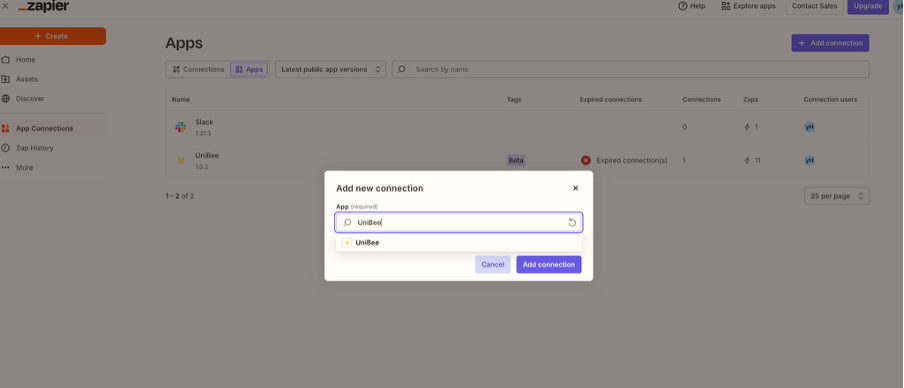
-
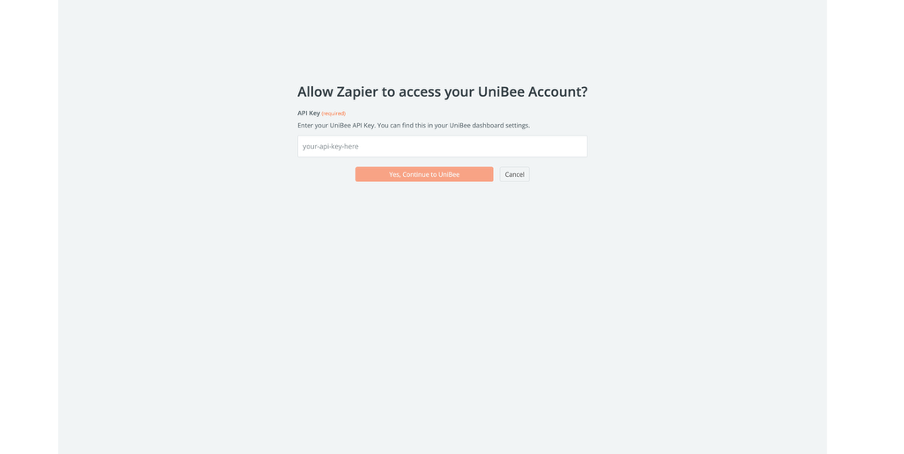
A pop-up window will appear asking for your API Key and Region.\
-
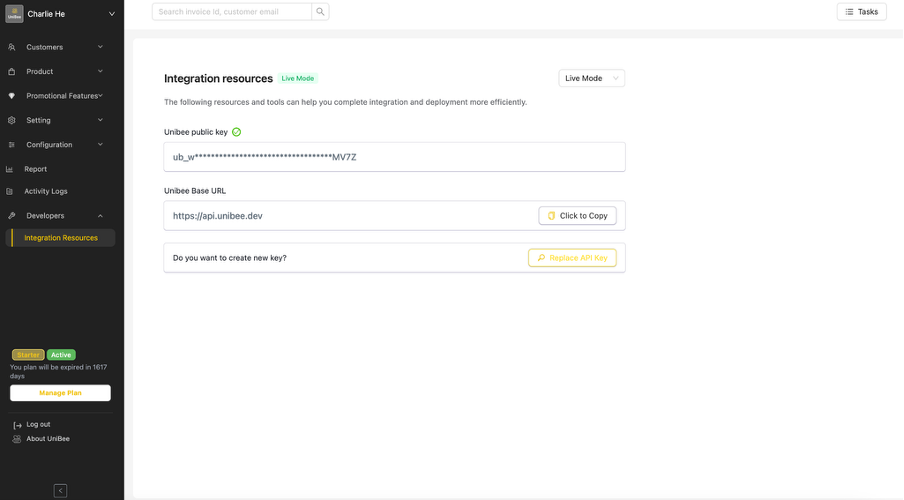
To get your API Key:
- Open your UniBee Dashboard.
- Go to Settings > Developer > API Keys.
- Click Create New Key.
- Copy the key and paste it into the Zapier window.
- Click “Yes, Continue”. Once authenticated, UniBee will appear in your “My Apps” list.
4. How to Create a Zap (Handling UniBee Events)
In this example, we will create a Zap that sends a Slack notification whenever a New Subscription is Activated.Step 1: Set up the Trigger
- Click ”+ Create Zap” on your Zapier dashboard.
- Click the Trigger block.
- Search for and select UniBee.
-
Choose Event: Select
New Subscription Activatedfrom the list. -
Click Continue.\
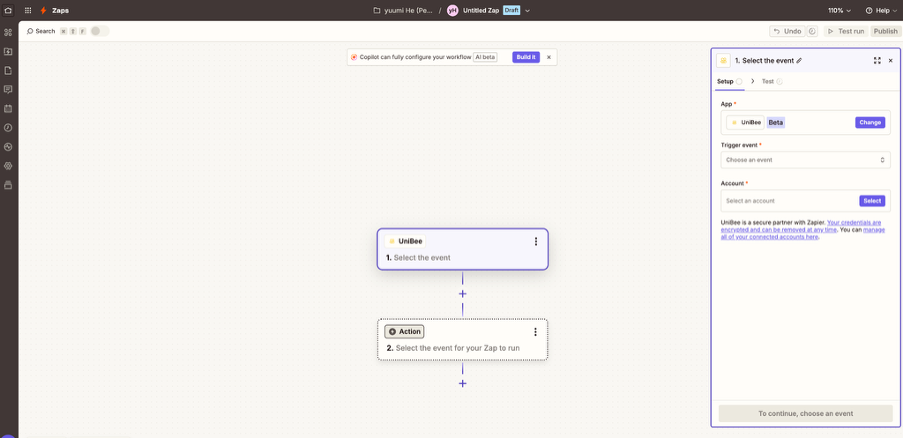
- Choose Account: Select the UniBee account you connected in the previous section.
-
Test Trigger:
- Click Test trigger.
- Zapier will pull in a recent subscription from your UniBee account as a sample.
- Note: If your UniBee account is empty, please manually create a test subscription in UniBee first.
- Review the data (e.g.,
email,plan_name,amount) and click Continue with selected record.
Step 2: Set up the Action
- Click the Action block.
- Search for Slack (or your preferred app).
- Choose Event: Select `Send Channel Message`.
-
Connect your Slack account and select the channel (e.g.,
#general). -
Configure Message:
- In the “Message Text” field, you can type static text and mix it with dynamic data from UniBee.
- Click inside the box and select fields from the “Insert Data” list.
- Example: “New Customer Alert! [User Email] just subscribed to [Plan Name].”
- Click Continue and Test step.
- If the test is successful, click Publish to turn on your Zap.
5. Supported Triggers
UniBee supports the following triggers on Zapier. Choose the one that best fits your workflow:- New User Event: Triggers when a user event occurs (created, updated, metric update, or subscription update).
- New User Plan Change: Triggers when a user subscription or subscription change occurs.
- New Subscription Event: Triggers when a subscription event occurs (created, activated, updated, cancelled, expired, etc.).
- New Subscription Activated: Triggers specifically when a subscription becomes active.
- New Subscription Expired: Triggers when a subscription expires.
- New Subscription Pending Update Event: Triggers when a subscription pending update event occurs (create, success, or cancelled).
- New Subscription Onetime Addon Event: Triggers when a subscription onetime addon event occurs (created, success, cancelled, or expired).
- New Payment Event: Triggers when a payment event occurs (created, authorized, success, cancelled, or failure).
- New Invoice Event: Triggers when an invoice event occurs (created, paid, process, cancelled, failed, or reversed).
- New Refund Event: Triggers when a refund event occurs (created, success, failure, cancelled, or reversed).
6. FAQ
Q: I’m getting an “Authentication Failed” error.A: Please check that your API Key was copied correctly without any leading or trailing spaces. Ensure the key is still active in your UniBee Developer settings. Q: What is the difference between “New Subscription Event” and “New Subscription Activated”?
A:
New Subscription Activated triggers only when a subscription successfully starts. This is best for “Welcome” emails. New Subscription Event is a broader trigger that fires for any change (creation, cancellation, expiration), which is better for comprehensive data logging.
Q: Can I filter events? (e.g., Only trigger for payments over $100)A: Yes. You can add a Filter step in Zapier between the Trigger and the Action. Set the logic to only continue if
Amount > 100.