

Batch Discount Codes
Batch discount codes let you define a single template (the “master rule”) and generate up to 10,000 unique, single-use child codes from it. Every child code inherits the template’s discount rules, but each can be redeemed only once — making batches ideal for large campaigns where you need to prevent sharing and track conversions code-by-code.💡 Looking for one reusable code instead of many unique ones? See Standard discount codes. Need codes created on the fly via API? See External discount codes.
Key features
- Template-based: One template holds all the discount rules; every generated code inherits them.
- Bulk generation: Generate up to 10,000 unique codes per template.
- Guaranteed uniqueness: Each code is unique at your merchant level; duplicates are rejected automatically.
- Single-use: Each child code can be redeemed only once, preventing sharing or resale.
- Import support: Bring in externally sourced codes (for example, vouchers sold on a third-party platform).
- Per-code tracking: See the status, redeeming user, and time for every individual code.
- Expandable: Increase the template’s target quantity after activation to mint more codes.
Common use cases
- Targeted marketing: Email a unique code to each user in a list so codes can’t be shared.
- Partner / influencer distribution: Give each partner their own batch (for example, prefix
KOL) and compare redemption performance per code. - Fraud prevention: Because each code is single-use, a code leaked to a coupon site won’t work for a second person.
- External voucher activation: Import codes sold elsewhere (for example, on a deals site) so customers can redeem them at your checkout.
1. Create a batch template
- Navigate to the Discount Code section in the UniBee Dashboard.
- Click New Batch Discount (or Create Batch Template).
- Configure the template:
- (Optional) Configure Advanced settings — see the note below.
- Click Save. The template status is set to Editing.

⚠️ Advanced settings require a master switch. All advanced rules (applicable scope, subscription limits, and “Same user cannot use the same discount code again”) only take effect when Enable advanced configuration is turned on for the template. If it’s off, those values may appear in the form and Summary but are not enforced at checkout. See Advanced configuration for full details — the rules are identical to standard codes.
⚠️ “Apply by billing period” matches on interval, not plan type. A one-time add-on (such as a minutes or top-up plan) that has, say,1 monthconfigured as its billing period will be matched by a1 monthbilling-period rule. To exclude such plans, use selected/except plans or the exclude list.
2. Activate the template
- While in Editing status, you can modify any setting.
- Click Activate. The status changes to Active.
Only activated templates can generate codes.
3. Generate child codes
Once the template is active, generate codes using either method.Method A: Automatic generation
- Click Generate Codes on the template detail page.
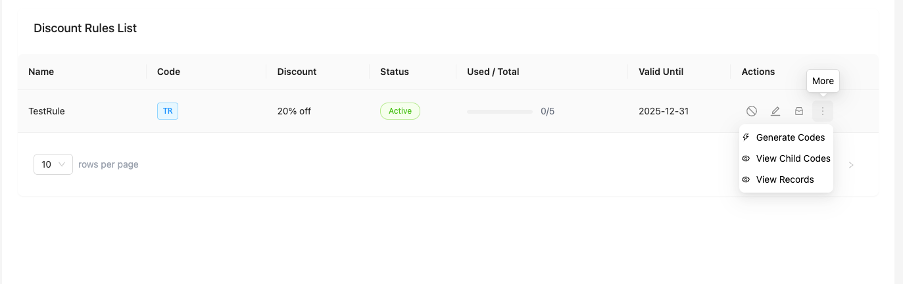
- The system mints unique codes up to the target quantity (or a quantity you specify, not exceeding the remaining amount).

{CodePrefix}{RandomPart} — for example VIP2025A3B7C9D2.
Generation is resumable: if it’s interrupted, running it again only creates the missing codes.
Method B: Import custom codes
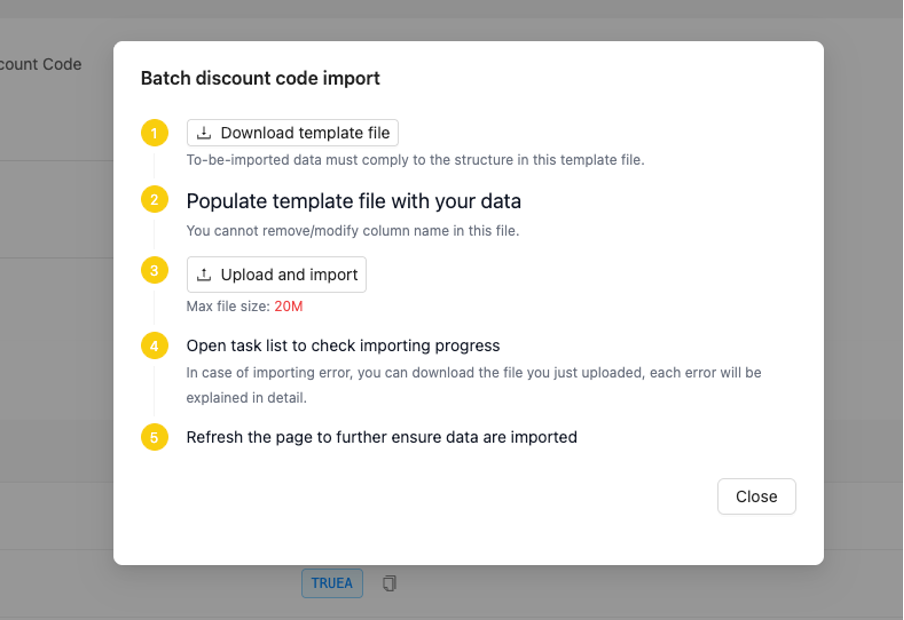
Use this to bring in codes from another system or partner.- Click Import Codes on the template detail page.
- Prepare an Excel/CSV file with these columns:
- Code — the discount code (any format, must be unique at your merchant level).
- TemplateCode — the code prefix of the target template.
- Upload the file and wait for processing.
- Review the import result file for any per-row errors.
4. Manage templates
View templates
In the Discount Code section you can:- Filter by status: Editing, Active, Inactive, Archived.
- Search by batch name or code prefix.
- See statistics: target quantity, generated count, used count, and available count.

Dashboard metrics
The batch overview surfaces real-time campaign performance:- Active Rules — number of live templates currently running.
- Total Codes — total unique child codes generated across all templates.
- Redemptions — total successful checkouts using these codes.
- Redemption Rate — Redemptions ÷ Total Codes.
Edit templates
Expand quantity
To mint more codes after activation:- Click Edit on the template (or use the quantity-increment action).
- Increase the Target Quantity (for example, 1,000 → 1,500). The total must stay ≤ 10,000.
- Save, then click Generate Codes again — only the additional codes are created.
Deactivate
- Click Deactivate to disable the template.
- All unused codes immediately become invalid; already-used codes are unaffected.
- Reactivating the template restores the unused codes.
Archive
- Click Archive when the campaign is complete.
- Archived templates cannot be edited or reactivated. Templates cannot be deleted (to preserve historical data).
5. Track individual codes
Code list
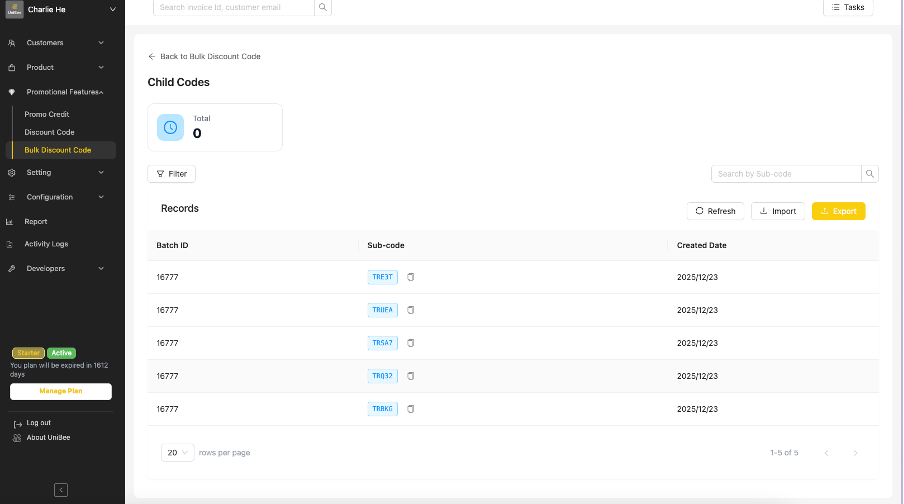
Open a template and go to the Codes tab to see every generated code:
You can filter by status (Available / Redeemed), search by partial code, and filter by usage date range.
Code details
Click any code to see its template, current status, and — if redeemed — the user, redemption time, and the related invoice, subscription, and payment IDs.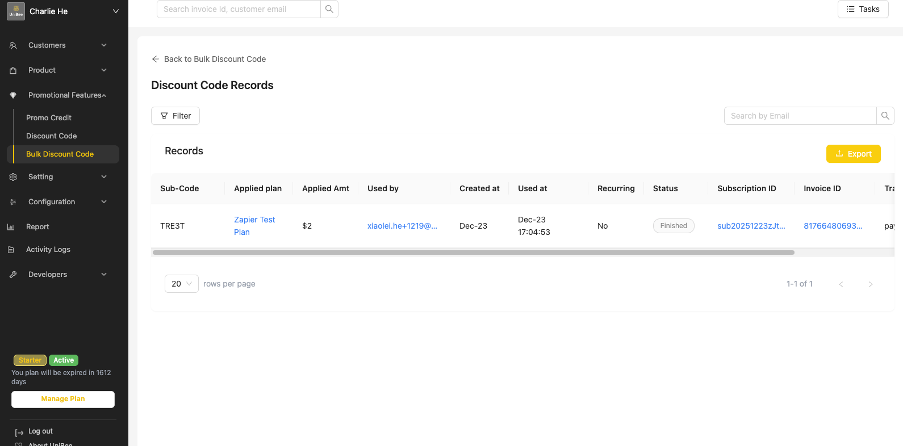
Export
- On the Codes tab, apply filters if needed (for example, only redeemed codes).
- Click Export and choose Excel or CSV.
- The export includes each code’s status, redeeming user, timestamps, related transaction IDs, and the inherited discount rules.
- Large exports run asynchronously — download from the Tasks section when ready.
Best practices
- Meaningful prefixes: Use clear, identifiable prefixes (
VIP2025,SPRING2025) so codes are easy to trace. - Start small, expand later: Begin with a modest quantity and increase it if the campaign succeeds.
- One template per channel: Use separate templates for different distribution channels to compare performance.
- Phase very large batches: For 5,000+ codes, generate in phases and run exports during off-peak hours.
- Archive finished campaigns: Keep the dashboard tidy.
FAQ
Can I change the rules for an individual code? No. All codes inherit rules from the template. Edit the template and all (not-yet-used) codes follow the new rules. How many codes can one template generate? Up to 10,000. For larger campaigns, create multiple templates. Can I reduce the quantity after generating codes? Not after activation — you can’t go below the number already generated. Before activation, you can adjust it freely. Can I import codes that don’t start with the template prefix? Yes. Imported codes can be in any format; they just need to be unique and linked to the template via theTemplateCode column.
What happens to unused codes when I deactivate a template?
They become invalid immediately. Already-used codes are unaffected, and reactivating restores the unused codes.
Can I delete a batch template?
No — archive it instead. Templates are retained to prevent accidental data loss.