

Documentation Index
Fetch the complete documentation index at: https://docs.unibee.dev/llms.txt
Use this file to discover all available pages before exploring further.
Bulk Discount Code Management
The Bulk Discount Code feature allows you to create a “Master Rule” and generate thousands of unique, single-use “Child Codes” under it. This is the ultimate tool for running large-scale marketing campaigns, preventing coupon abuse, and tracking individual conversion sources precisely. ---1. Dashboard Analytics
Located at Promotional Features > Bulk Discount Code, the dashboard provides real-time performance tracking for all your campaigns.- Active Rules: Number of live discount frameworks currently running.
- Total Codes: The total count of unique sub-codes generated across all rules.
- Redemptions: Total successful checkouts using these codes.
- Redemption Rate: Overall conversion efficiency (Redemptions / Total Codes).

> Description: The main dashboard showing the four key metric cards and the Discount Rules List. ---
2. Operating Procedures
Step 1: Create a Master Discount Rule
Before generating individual codes, you must define the discount logic.- Click + Create New Rule in the top right corner.
- Configure the following fields in the modal:
- Name: Internal name for the campaign (e.g., Spring Sale 2025).
- Code Prefix: The starting characters for every code (e.g., `SPRING`).
- Discount Type: Choose between Percentage or Fixed Amount.
- Billing Type: Set as One-time (first invoice only) or Recurring (applies to renewals).
- Valid Date Range: Define the start and end dates for the campaign.

> Description: The configuration modal used to set up the rules and discount values. ---
Step 2: Generate Unique Child Codes
Once the rule is active, you can “mint” the actual codes.- Find your rule in the list and click the Actions (three dots) icon.
- Select Generate Codes.
- Quantity to generate: Enter the amount (up to 1,000 per batch).
- Code length: Choose the length of the random characters following your prefix (Range: 4 - 20).
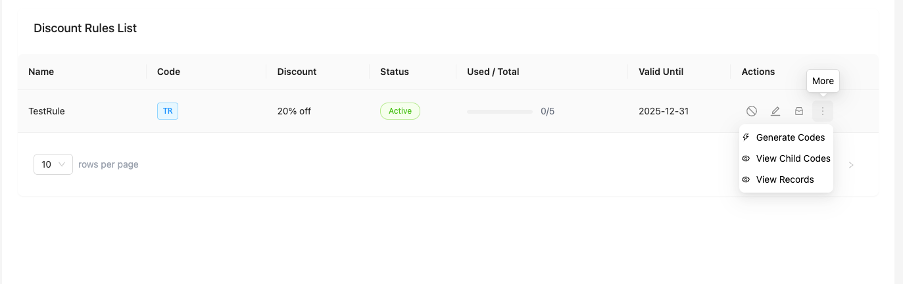
> Description: How to find the ‘Generate Codes’ option under the Actions menu.

> Description: The modal used to specify how many unique codes to generate. ---
Step 3: Management (Import & Export)
- Exporting: Go to View Child Codes and click Export to download a CSV. This is useful for distributing codes via your email marketing tool.
- Importing: If you have codes from an external platform (like Groupon), click Import. Follow the 5-step process: Download the template, fill in your data, and upload.
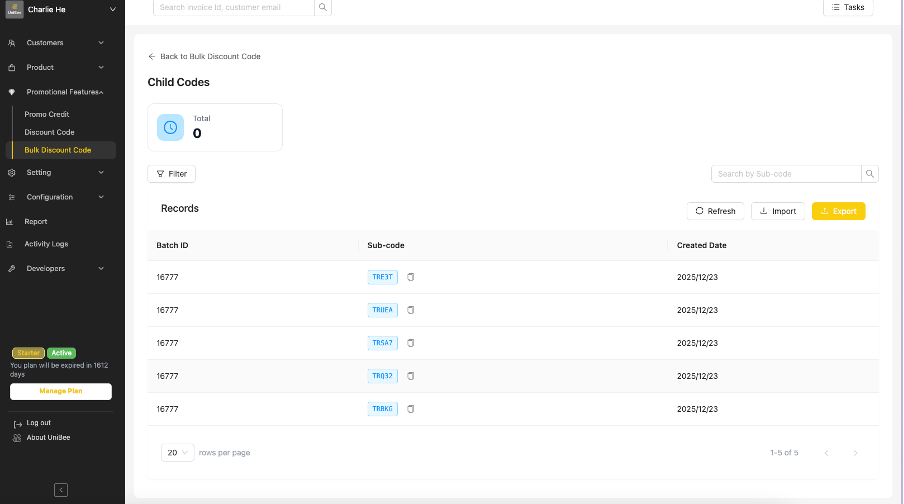
> Description: The Child Codes list view showing unique codes and their batch IDs.
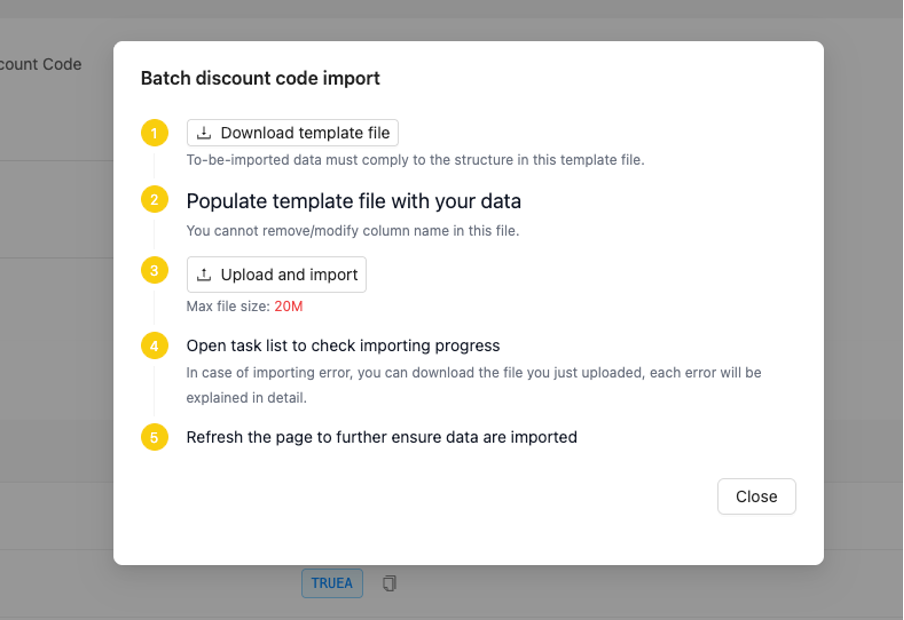
> Description: The 5-step instructions for importing external discount codes. ---
Step 4: Tracking Usage Records
Transparency is key. In the View Records section, you can audit every single redemption.- Used by: Shows the specific customer’s email address.
- Applied Amt: The actual value of the discount granted.
- Traceability: Click the Subscription ID or Invoice ID to jump directly to the transaction details.
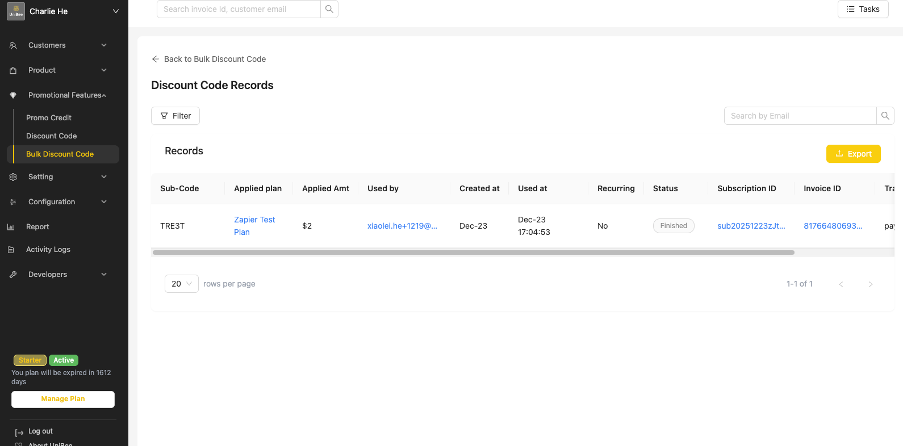
> Description: The detailed records page showing exactly who used which code and when. ---
3. Practical Use Cases
Case A: Influencer Marketing
- Scenario: You partner with 10 influencers. You want to see who drives the most sales.
- Strategy: Create a rule with the prefix `KOL`. Generate batches and assign them to each influencer.
- Result: Use the Records page to track which specific codes resulted in the most revenue.
Case B: Fraud Prevention
- Scenario: You want to offer a “Welcome” discount but don’t want it shared on coupon websites.
- Strategy: Generate unique child codes. Send one unique code to each new user via email.
- Result: Because each code is “One-time” use, even if it’s posted online, it won’t work for a second person.
Case C: External Voucher Activation
- Scenario: You sold 100 vouchers on a site like Groupon.
- Strategy: Import the external codes into UniBee.
- Result: Customers can use their external vouchers directly on your checkout page.